![memtime-light-2x.png.png]](https://knowledgebase.memtime.com/hs-fs/hubfs/memtime-light-2x.png.png?height=40&name=memtime-light-2x.png.png)
With the steps from this article, it is not necessary to assign rights to each individual DATEV user, as this Service User will be used for API access.
Before starting
Before creating a Service User in DATEV and setting up the required permissions, we recommend first using an existing DATEV user with Main Admin rights.
If your IT support has access to this DATEV Main Admin user, you can arrange a call with them.
Then, try authenticating with this user as described in this article:
🔗 Authenticating Memtime with a DATEV Service User
This is the recommended way to connect the Service User.
1. Open User Management
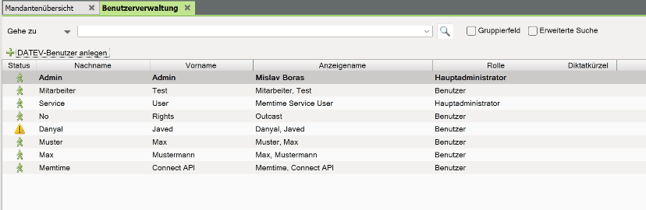
Open User Management in DATEV using the program search.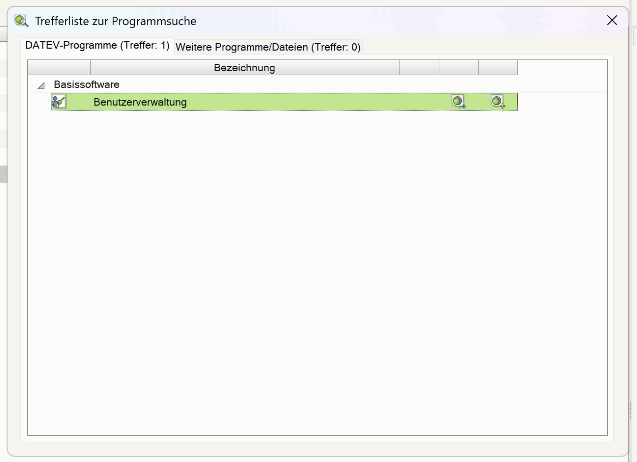
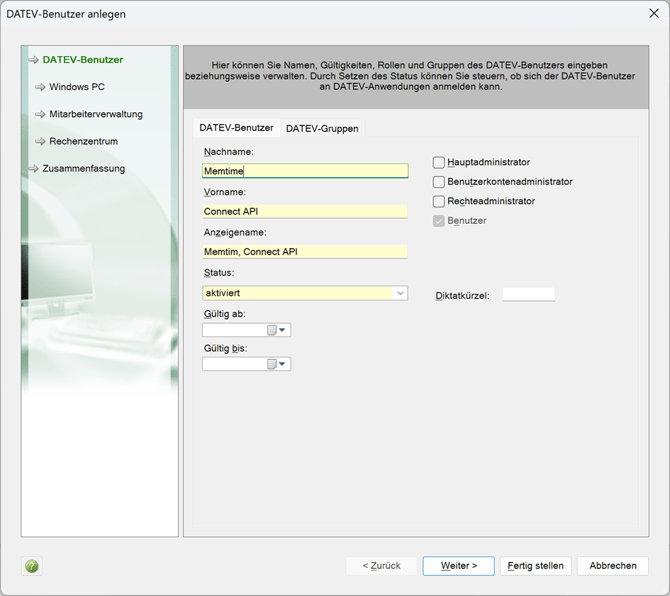
2. Create a Service User
In User Management, create the Service User. Only the first and last name need to be entered.
3. Connect a Windows user
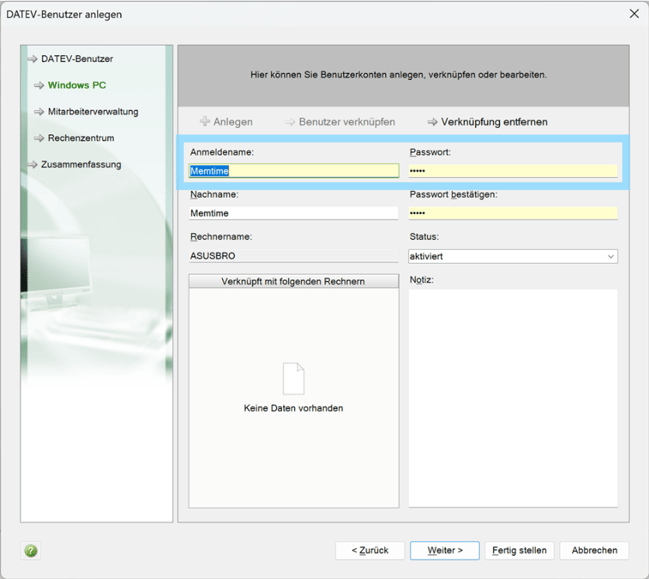
The Service User must be linked to a Windows user. If this user does not exist yet, please create it.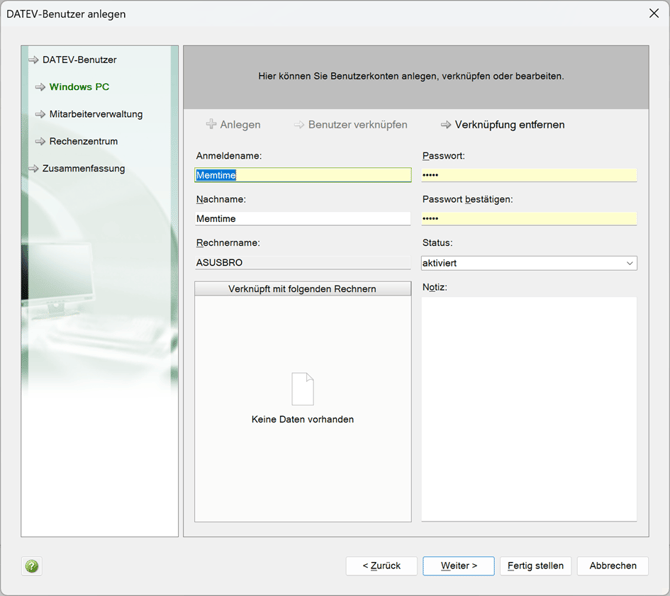
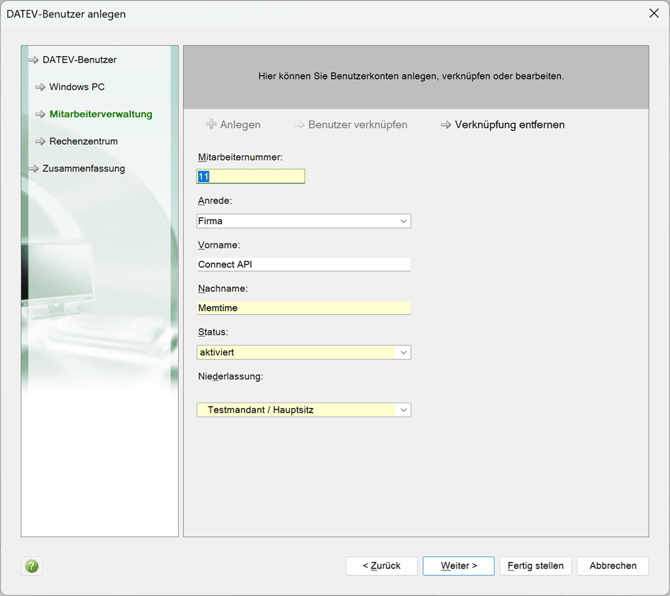
4. Assign Employee
The Service User must be assigned to an employee. If this employee does not exist yet, please create it.
5. Connect a Data Center User
The Service User must be linked to a data center user. If this does not exist yet, please create it.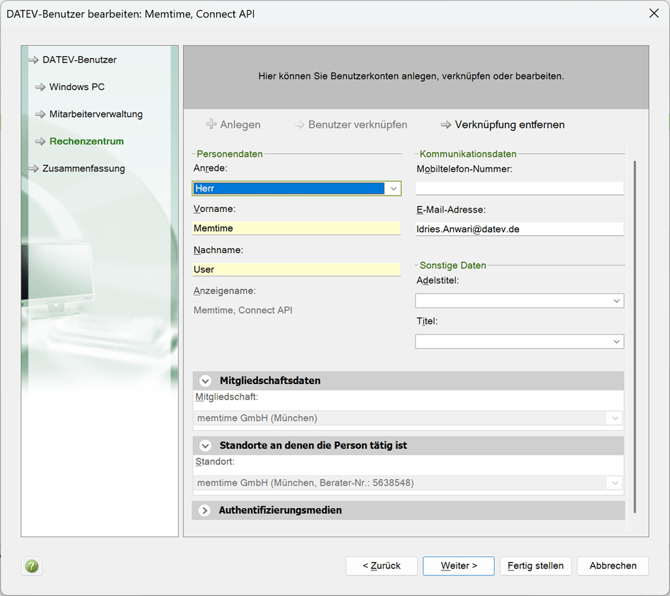
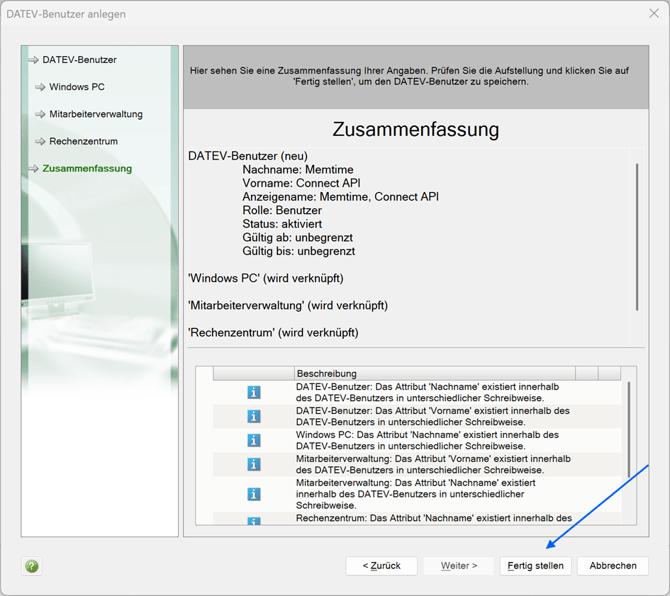
6. Check Settings and Complete
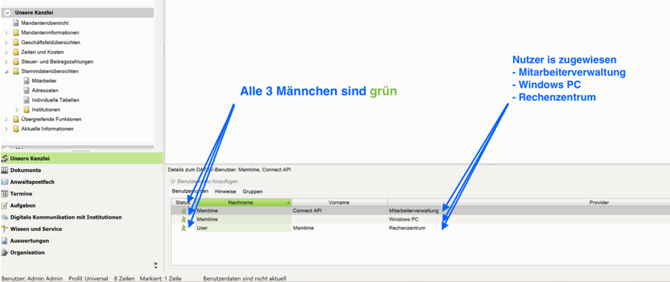
Verify that the employee is assigned to all three key areas:
- Employee Management
- Windows PC
- Data Center
After checking, click Finish.
All human icons must be green. A yellow warning triangle indicates an error in the setup.
7. Open Rights Management
Open Rights Management using the program search.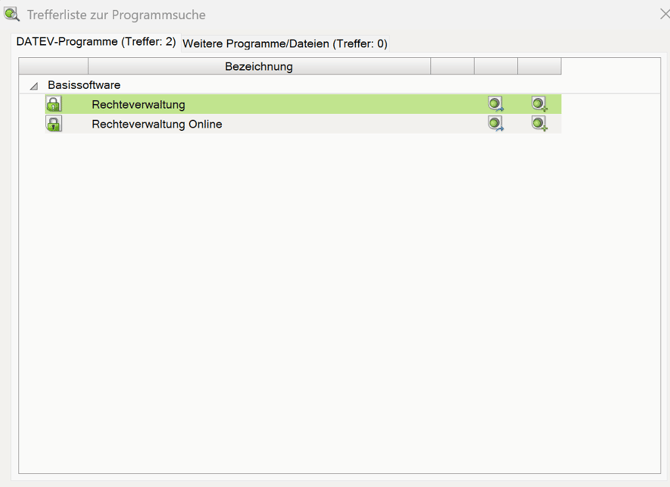
8. Assign Rights to the Service User
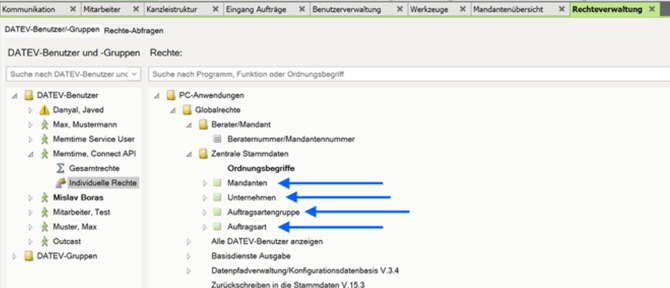
Give the user the following rights, including all sub-items:
- PC Applications → Global Rights → Central Master Data
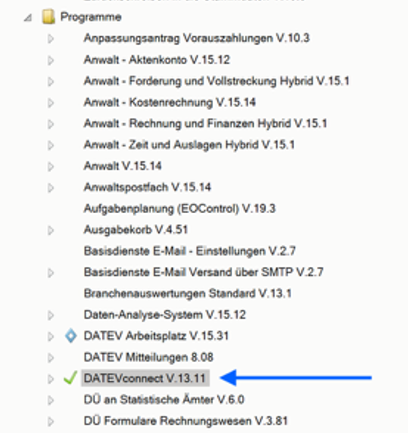
- PC Applications → Programs → DATEVconnect
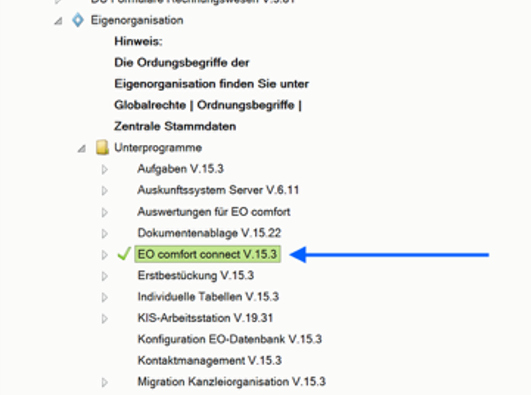
- PC Applications → Programs → Own Organization → Subprograms → EO Comfort Connect
Details:
1. PC Applications → Global Rights → Central Master Data → Ordering Terms:
- Clients
- Companies
- Order Type Groups
- Order Types
2. PC Applications → Programs:
- DATEVConnect V.13.11
3. PC Applications → Programs → Own Organization → Subprograms:
- EO Comfort Connect V.15.3
9. Test the Windows Login
Your IT team should try logging into a Windows account using the created Service User.
Although this is a technical user, the Service User needs to exist as a regular user in DATEV. So the Windows login must work successfully for the Service User to function correctly in Memtime.
10. Authenticate the Service User in Memtime (Memtime Admins)
This step must be completed by the creator of the Memtime account or a Memtime admin user. It is performed directly in the installed Memtime application.
Once the Service User has been set up in DATEV, Memtime admins gain access to additional settings for DATEV EO Comfort.
These settings are only visible to Memtime admins and are not available to regular users.
Authenticate the Service User
- Open the Memtime application.
- Navigate to Project Management → DATEV → Settings → Advanced Settings
- Authenticate the DATEV Service User in Memtime.
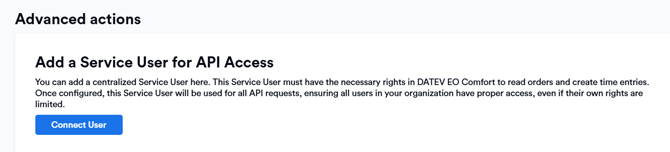
Your DATEV Service User username and password will be visible under:
DATEV → User Management → Service User → Windows PC
For detailed instructions, see:
🔗 Authenticating Memtime with a DATEV Service User
The service user name usually has a domain that should be prepended.
What happens next?
After the Service User has been authenticated, all other Memtime users can authenticate using their own DATEV credentials.
Authenticate your own DATEV user
- Open the Memtime application.
- Navigate to Project Management → DATEV → Settings
- Authenticate your DATEV User in Memtime in the option at the top of your Settings.

For detailed instructions for regular users, see:
🔗 Authenticating Memtime with your own DATEV User
Support
Need help with the article or have any questions? Reach out to us anytime at: