![memtime-light-2x.png.png]](https://knowledgebase.memtime.com/hs-fs/hubfs/memtime-light-2x.png.png?height=40&name=memtime-light-2x.png.png)
Step 1: Install WorkflowMAX as a Connected App
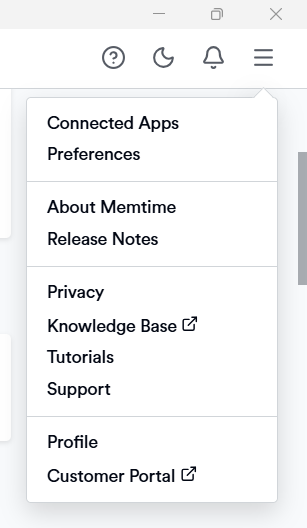
1. Open the Memtime app and click on the Menu Icon (☰). Select Connected Apps.
2. If WorkflowMAX is not listed among the Connected Apps, click on Find more Connected Apps to search for WorkflowMAX and install it.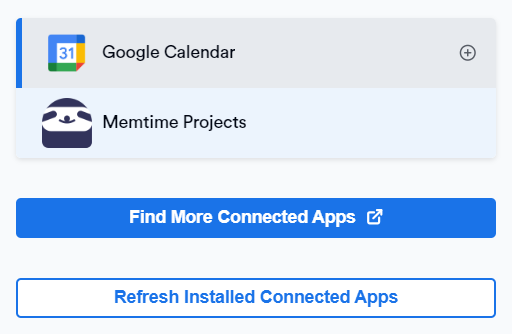
3. The Memtime Marketplace website will open in your browser. Enter WorkflowMAX in the search bar or browse for another Connected App you would like to try.
Once you find WorkflowMAX, click on Install.

4. A browser tab will open for you to configure how WorkflowMAX behaves for all users in your account, you can adjust the configurations according to your needs.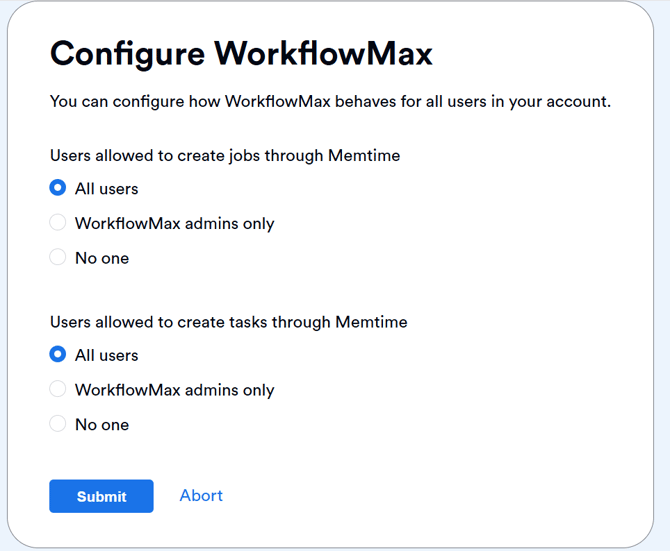
Step 2: Authenticate WorkflowMAX
1. In Memtime, select WorkflowMAX from the list of Connected Apps and click on Authenticate.
Alternatively, you may be prompted to authenticate automatically.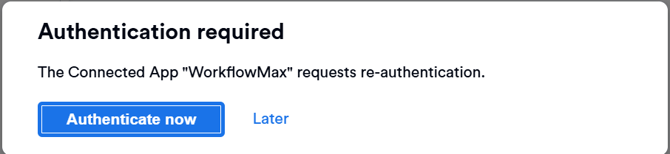
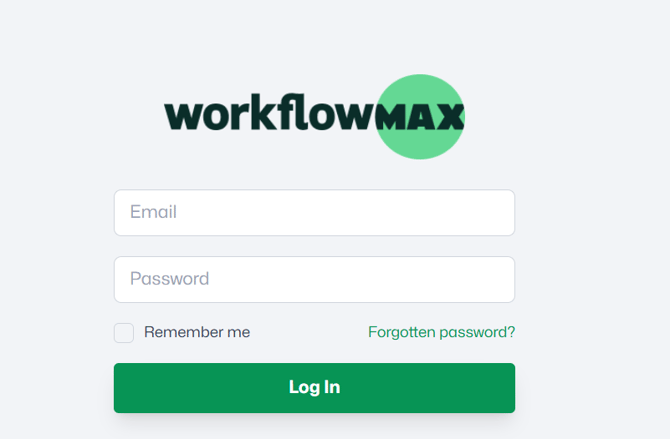
2. A browser window will open. Enter your login details to sign in to your WorkflowMAX account.
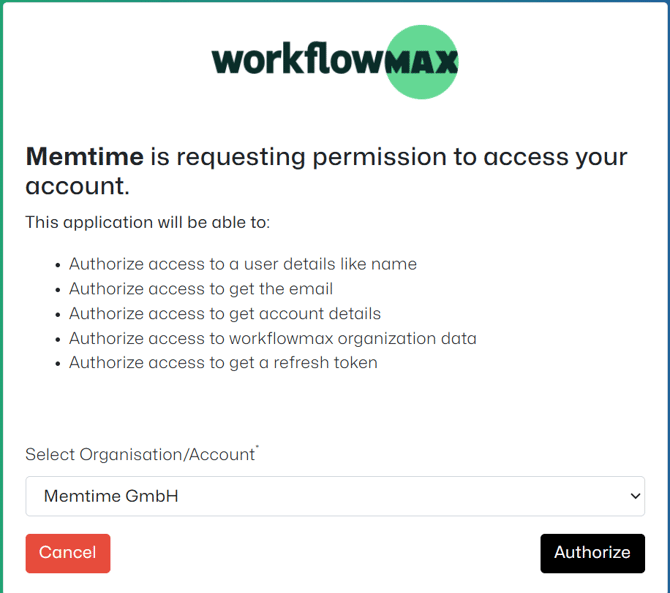
3. You will be prompted to allow Memtime to access your account. Click on Authorize
3. After the authentication is completed, click on Refresh installed Connected Apps to make sure WorkflowMAX is authenticated.
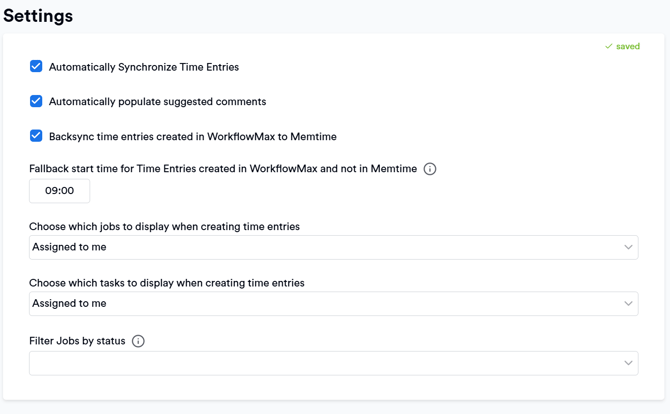
4. Select WorkflowMAX in the Connected Apps menu to open the settings.
Here you can adjust the settings according to your needs.
Step 3: Create WorkflowMAX time entries in Memtime
1. Open the Project Management tab in Memtime.
Click the refresh option to make sure all your projects have been imported.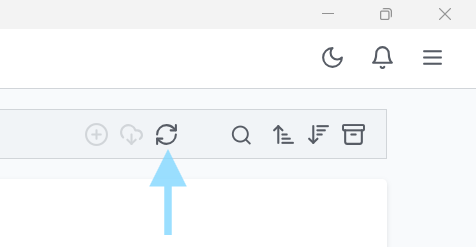
2. Go to the Time Tracking tab and create time entries by clicking and dragging in the time entries area.
In the time entry window, you can now select WorkflowMAX as the Connected App.
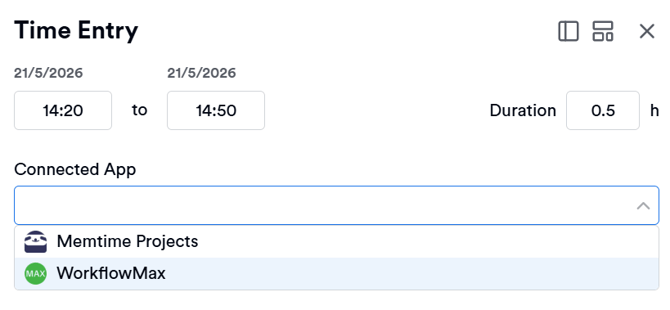
3. As soon as you create a time entry in Memtime for one of your WorkflowMAX tasks, it will automatically sync with your WorkflowMAX account.
On the WorkflowMAX website, you can view your booked times under Timesheets → My Timesheets and find more detailed information there.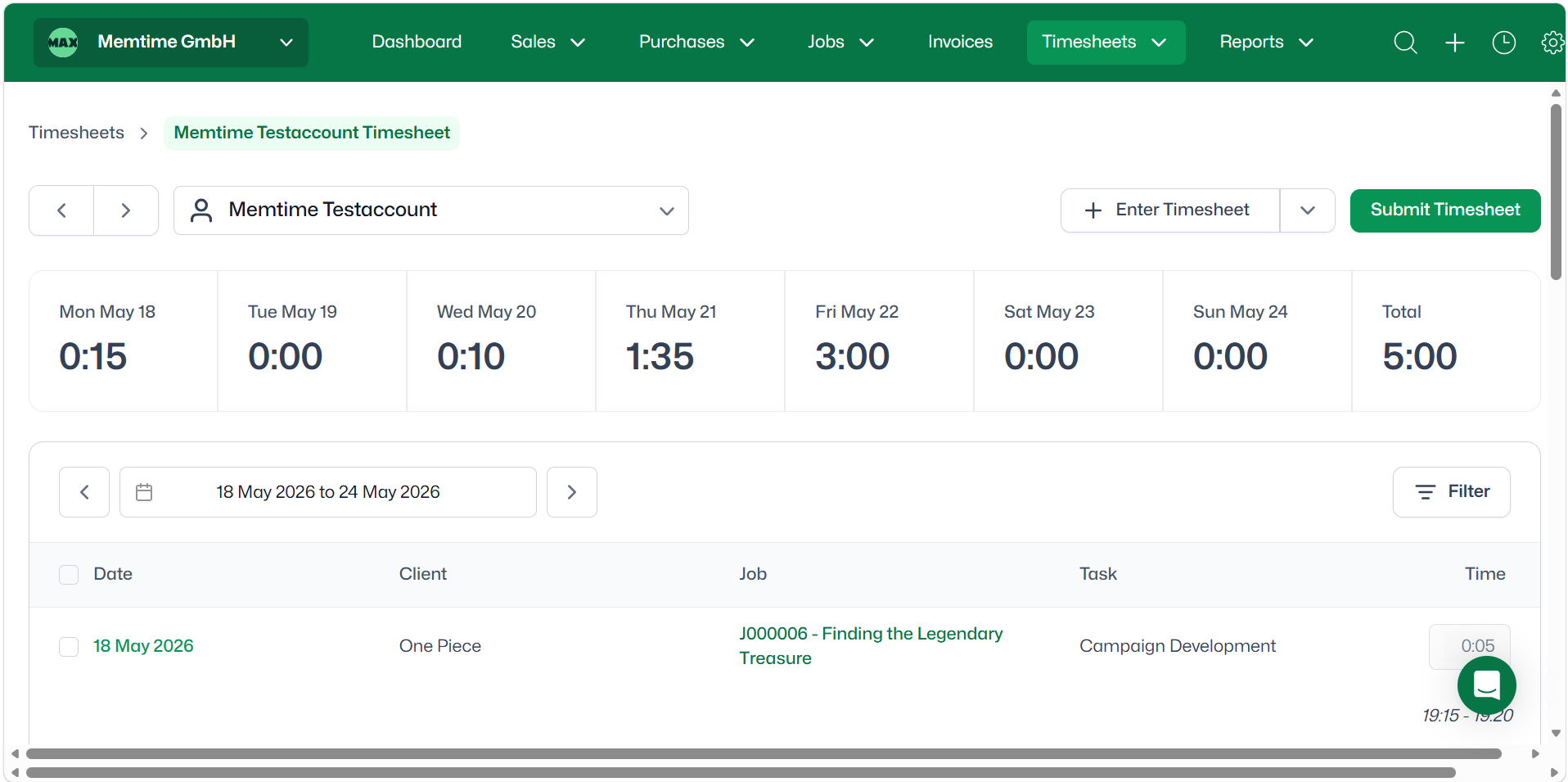
Automatic Synchronization:
Memtime automatically exports time entries created in Memtime to WorkflowMAX. Similarly, any time entries created directly in WorkflowMAX are exported to Memtime by default.
Support
Need help with the article or have any questions? Reach out to us anytime at: