![memtime-light-2x.png.png]](https://knowledgebase.memtime.com/hs-fs/hubfs/memtime-light-2x.png.png?height=40&name=memtime-light-2x.png.png)
Availability: This integration is included only in the following subscription plan:
- Memtime Premium
Users on other plans need to 🔗 upgrade their subscription to gain access to it.
Step 1: Install Memtime Android Call History as a Connected App
1. Open the Memtime app.
2. Click on the following:
Menu icon (☰) → Connected Apps
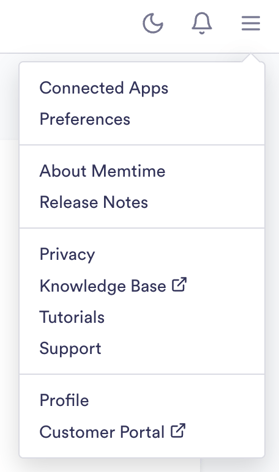
3. If Memtime Android Call History is not in the list of your Connected Apps, you can click on the button Find More Connected Apps.
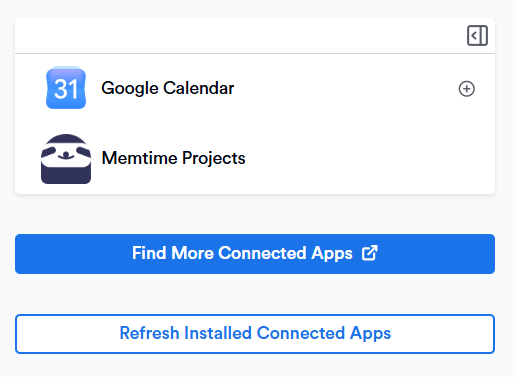
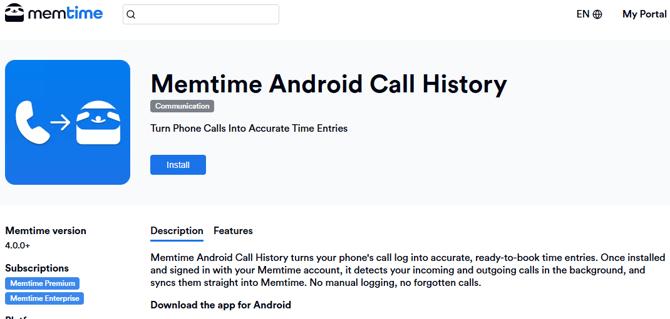
4. The Memtime Marketplace website will open in your browser.
You can enter Memtime Android Call History in the search bar or browse for another Connected App you would like to try.
Once you find Memtime Android Call History, click on Install.
4. Return to Memtime and click Refresh Installed Connected Apps.
5. After installing Memtime Android Call History, you can change some settings according to your preferences. You can choose:
-
which calls to display and which not
-
the minimum duration of the calls to be displayed
-
which contacts to hide
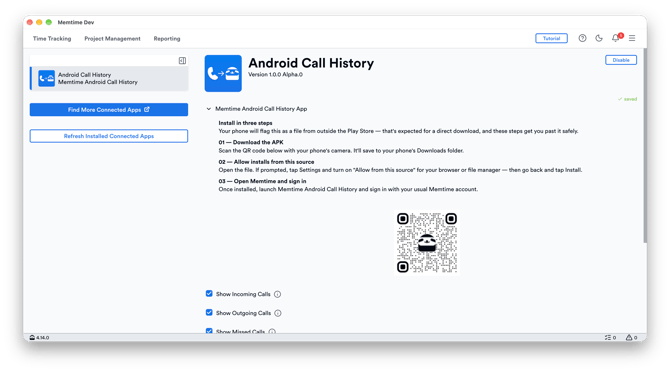
Step 2: install the Memtime Android Call History app on your Android phone.
1. Use the QR code from the screenshot above, which is displayed in the settings when you don't have any calls synched (first time user). This will open the download page on your phone:
https://www.memtime.com/android-call-history
2. Click on Download Memtime Android Call History

3. Open the Memtime Android Call History app and login with your Memtime account.
4. You will be prompted to:
-
Grant Call History Access
-
Grant Contact Access
-
Choose the time range of the call history you want to export
-
Decide how often you want to export your call history to the Memtime Desktop App
-
Proceed with the last step to continue.
5. Click Export and wait for the confirmation message.
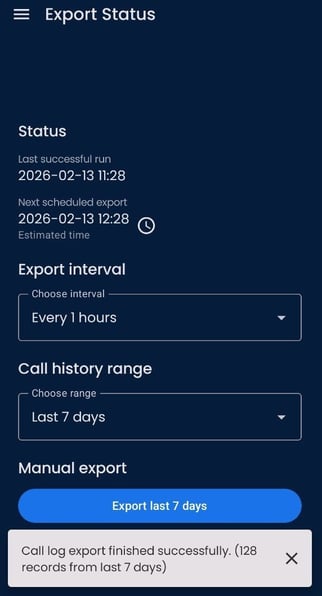
Step 3: Create Time Entries in Memtime from Android Calls
1. Go to the Time Tracking tab in Memtime. You will now see your Android calls displayed in the Calls column.
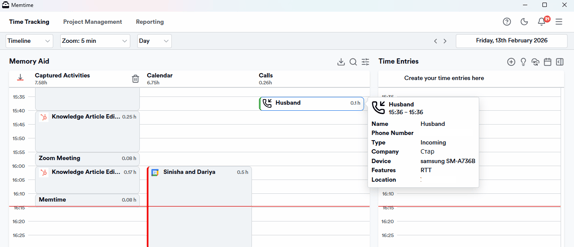
2. This integration lets you create time entries directly from your calls. Simply hover over a call and click the + button to add a time entry. 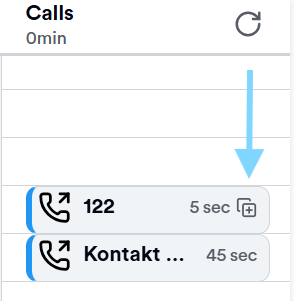
Automatic Synchronization: Memtime automatically imports calls from your Android phone, making the creation of time entries simpler than ever.
Video Summary
If you want to see the whole process in action, you can watch this video and follow it step by step.
Support
Need help with the article or have any questions? Reach out to us anytime at: