![memtime-light-2x.png.png]](https://knowledgebase.memtime.com/hs-fs/hubfs/memtime-light-2x.png.png?height=40&name=memtime-light-2x.png.png)
This integration works differently from Memtime Projects Local.
- Memtime Projects supports team use, cloud export of time entries, shared projects, and team-level reports.
- Memtime Projects Local is for personal use only, with data stored locally and user-level reports.
Step 1: Install Memtime Projects as a Connected App
1. Launch the Memtime App and navigate to the Menu (☰) -> Connected Apps.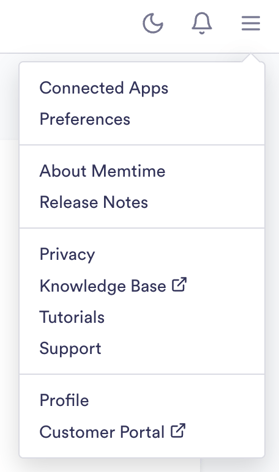
2. If Memtime Projects is not listed, click Find More Connected Apps.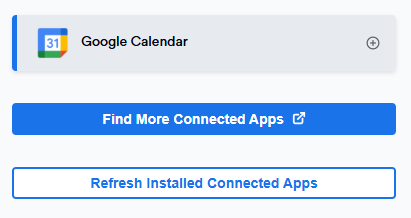
3. The Marketplace website will open in your browser. Search for Memtime Projects in the search bar, or any other Connected App you’d like to try.
Once you find Memtime Projects, click Install.

4. Open Memtime and go to Menu (☰) → Connected Apps.
Refresh Installed Connected Apps to see Memtime Projects listed.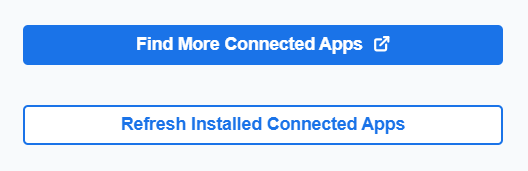
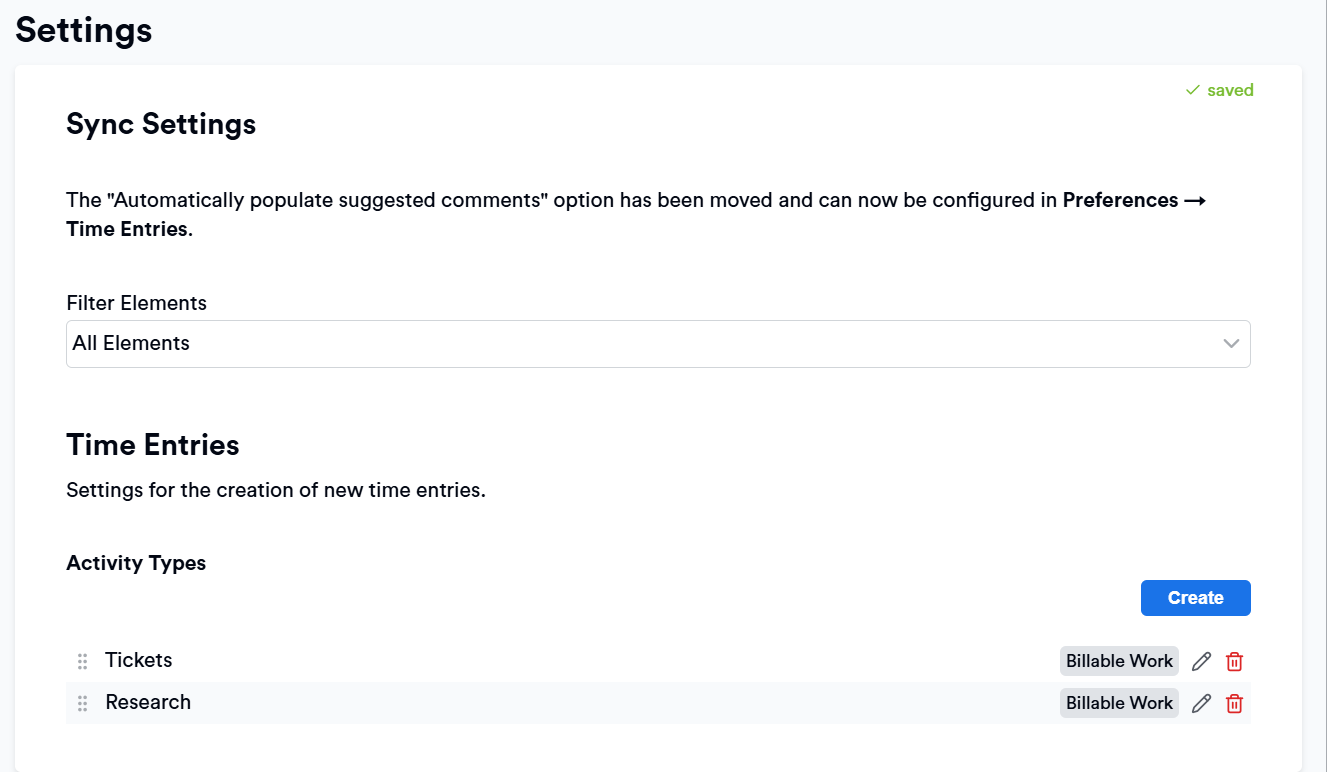
5. After refreshing, you can select Memtime Projects from the Connected Apps menu to access its settings.
Here, you can customize the settings to match your preferences.
From now on, you can access Memtime Projects directly through your Customer Portal.
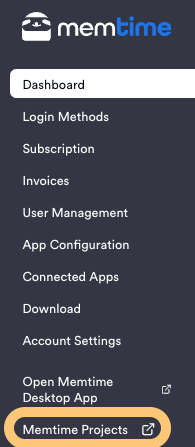
With Memtime Projects, you can now create entities directly in the app or on our website. This integration supports team-level project management and adds new reporting options, including project-specific reports.
Learn more about its reporting features here: 🔗Report Types in Memtime Projects.
Support
Need help with the article or have any questions? Reach out to us anytime at: