![memtime-light-2x.png.png]](https://knowledgebase.memtime.com/hs-fs/hubfs/memtime-light-2x.png.png?height=40&name=memtime-light-2x.png.png)
Please note that this feature is currently still in beta.
The Proxy Connection for DATEV speeds up data retrieval and reduces load on the DATEV API.
Why use a Proxy Connection?
-
Protects the DATEV API. Without the proxy, every user's reads hit DATEV directly. With it, the whole company is served from one warm cache refreshed in the background — roughly one set of DATEV calls per refresh window instead of one per user.
-
Faster reads. Data is served from memory; even expired entries are returned immediately (served-stale) while they refresh in the background.
-
Safe by design. Reads only. Sign-in and time-entry writes always go straight to DATEV with the user's own identity, so a proxy outage never blocks login or time tracking; the integration also falls back to direct DATEV calls if the proxy is unreachable.
Step 1: Adding a Service User in Memtime
This step is mandatory. The Proxy Connection authenticates to DATEV as this central user (Service User), which then enables the Activate Proxy button in the Memtime app.
Detailed instructions for how to add a service user in Memtime are here:
🔗 Setting Up a Service User for Memtime
Unless a Service User exists in Memtime, the Proxy Connection options will be hidden.
Step 2: Activating the DATEV Proxy Connection
The Memtime admin user performs the instructions from this section.
Please make sure your proxy is correctly configured before proceeding.
1. Open the Memtime app, and navigate to:
Menu Icon (☰) → Connected Apps
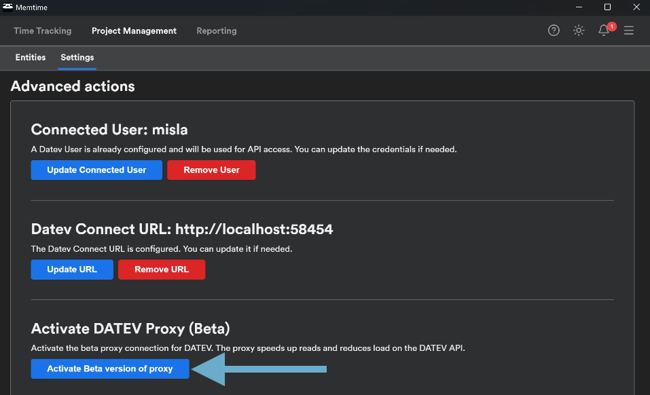
2. Click on the DATEV EO Comfort integration, and scroll down to the Advanced Settings section.
3. Click Activate Beta Version of Proxy.
4. Then click again on Activate.
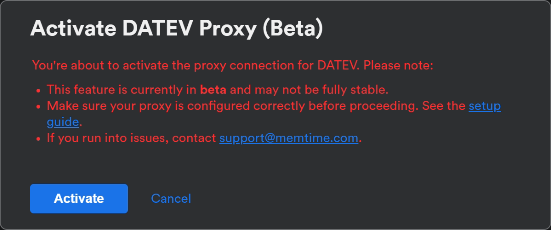
This will close the current window and enable the Set Proxy button, which you need for Step 5 of this article.
Step 3: Obtain the Proxy Download Link
To obtain the latest Proxy download link, please contact the Memtime Support Team at support@memtime.com.
When contacting support, we recommend including the following information:
- Your company name
- Your Memtime account email address
- A brief description of your use case
Our team will provide you with the appropriate download link and any additional setup instructions if required.
Step 4: Installing and running the Proxy Connection on the company-wide server
The system admin performs the instructions from this section.
What you'll do, at a glance:
1. Download datev-proxy.exe from the knowledge-base setup article and place it in a folder on the shared server.
2. Open the proxy's TCP port in Windows Firewall (if it must be reached from other machines).
3. (Optional) tune config.json.
4. Run the proxy — typically as a Windows Service, so it survives reboots.
5. Confirm it responds on GET /health.
6. Paste the proxy URL into Memtime (Memtime admin advanced action Set Proxy URL).
That's it. No DATEV credentials are entered on the proxy — the integration pushes them in automatically once the proxy URL is configured and an API User exists.
1. Place the executable
Put datev-proxy.exe in a dedicated folder on the shared server. Any folder the account that runs the proxy can read and write. config.json and credentials.enc are created next to it:
{
  "status": "healthy",
  "proxy": true,
  "uptime": 12.3,
  "credentials": { "configured": false, "username": null },
  "cacheEntries": 0,
  "inflightRequests": 0,
  "backgroundSync": { "isSyncing": false, "lastSyncAt": null, "lastSyncDurationMs": null },
  "config": { "port": 12345 }
}
Permissions: The folder must be writable by whichever account runs the proxy. The proxy creates config.json if missing, reads it on every start, and writes/reads credentials.enc whenever the integration pushes credentials.
2. Open the port
The default port is TCP 12345. If the proxy runs on the same server as Memtime and is only reached via localhost, a firewall rule may not be needed. If other machines must reach it, open an inbound TCP rule in Windows Firewall on the proxy machine:
netsh advfirewall firewall add rule name="Datev Proxy" dir=in action=allow ^
    protocol=TCP localport=12345
If 12345 conflicts with something else on the machine, choose another port and:
1. Use that port in the firewall rule.
2. Set it in config.json (Step 3) or via the PORT environment variable.
Scope: The proxy speaks plain HTTP, and it has no TLS of its own. Keep the port internal only; do not expose it to the public internet.
3. tune config.json (Optional)
You can skip this step. On first launch, the proxy auto-creates config\config.json next to the executable with sensible defaults.
If you do want to customise before you first start, place a config.json alongside the executable with any of these keys:
{
  "server":   { "port": 12345 },
  "datev":    { "baseUrl": "http://localhost:58454", "endpoints": [ … ] },
  "cache":    { "strategies": { "long": 60, "middle": 15, "short": 5 },
                "syncIntervalMinutes": 90, "pageSize": 1000 },
  "pagination":{ "maxPages": 100, "timeout": 30000 }
}
The most common edits:
datev.baseUrl— if the DATEV server isn't onlocalhost:58454.server.port— if 12345 is taken.cache.syncIntervalMinutes— only change if explicitly recommended.
Restart the proxy after editing config.json.
4. Run the proxy
Pick one of three options.
Option A: Windows Service via NSSM (recommended)
NSSM wraps any .exe as a real Windows service, so it auto-starts on boot, restarts on crash, and is manageable via services.msc.
1. Download NSSM and place nssm.exe somewhere on PATH (or in the install folder).
2. From an elevated PowerShell (replace <install-folder> with your chosen folder):
nssm install DatevProxy "<install-folder>\datev-proxy.exe"
nssm set DatevProxy AppDirectory "<install-folder>"
nssm set DatevProxy DisplayName "Memtime Datev Caching Proxy"
nssm set DatevProxy Start SERVICE_AUTO_START
nssm set DatevProxy AppStdout "<install-folder>\logs\stdout.log"
nssm set DatevProxy AppStderr "<install-folder>\logs\stderr.log"
nssm start DatevProxy
3. Verify in services.msc that Memtime Datev Caching Proxy is running.
Option B: Task Scheduler at startup
Lightweight alternative when NSSM isn't approved by the customer's IT.
1. Open Task Scheduler → Create Task (not "Create Basic Task").
2. General: name DatevProxy; Run whether user is logged on or not; Run with highest privileges.
3. Triggers: At startup.
4. Actions: Start a program → the full path to datev-proxy.exe. Set Start in to the install folder.
5. Settings: enable If the task fails, restart every 1 minute up to 3 times.
Caveat: Task Scheduler doesn't capture stdout/stderr by default; logging is harder than with NSSM.
Option C: Manual launch (testing only)
cd "<install-folder>"
datev-proxy.exe
The process logs to the console with timestamps. Closing the terminal stops the proxy — only use this for first-time validation.
5. Verify the proxy is running
From any machine that can reach the proxy host (or on the server itself if it runs on localhost):
GET http://localhost:12345/health
Expected response:
{
  "status": "healthy",
  "proxy": true,
  "uptime": 12.3,
  "credentials": { "configured": false, "username": null },
  "cacheEntries": 0,
  "inflightRequests": 0,
  "backgroundSync": { "isSyncing": false, "lastSyncAt": null, "lastSyncDurationMs": null },
  "config": { "port": 12345 }
}
status: "healthy" and proxy: true both being present is what the integration looks for. credentials.configured: false is expected at this point — credentials arrive in the next step.
Step 5: Configuring the Proxy Connection in Memtime
The Memtime admin user performs the instructions from this section.
1. Go back to Memtime, click on Set Proxy, and enter the Proxy URL.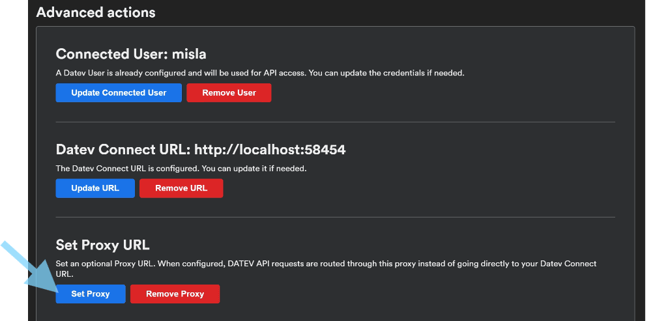
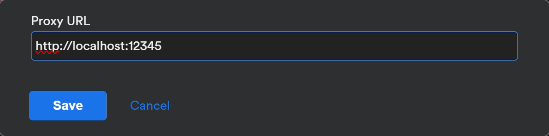
2. Enter http://localhost:12345 (the default URL, when the proxy runs on the same server as Memtime; otherwise use http://<proxy-host>:12345).
Click Save.
Make sure the proxy is installed and running (Step 4) before entering the URL.
When you save, Memtime verifies the proxy is reachable. It calls GET /health and only accepts the URL if the proxy responds "healthy".
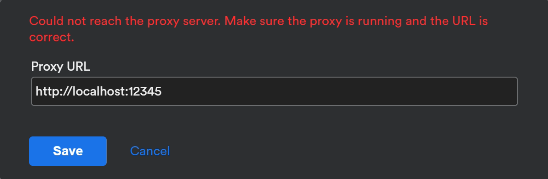
3. When you click on the Save button, there's a background check if the Proxy Connection is active, and if it is, the save will be completed.
If the Proxy Connection is not active, you will see the following error, which indicates you might need to check its settings from Step 4 in this article.
Support
Need help with the article or have any questions? Reach out to us anytime at: