![memtime-light-2x.png.png]](https://knowledgebase.memtime.com/hs-fs/hubfs/memtime-light-2x.png.png?height=40&name=memtime-light-2x.png.png)
You may experience the following error message in Memtime when creating time entries:
"Employee does not belong to the chancellery"
Short explanation
DATEV does not support purely technical users. Any DATEVconnect user used in EO Comfort must also exist as a regular chancellery employee with the correct permissions and branch assignment.
Process Overview
1. Make the Employee Overview visible in the DATEV Workplace.
2. Grant permissions for the Employee Overview and Employee Management.
3. Enable branch selection for employees; relevant for the "comfort" custom organization model.
4. Create technical users as employees in the Central Master Data.
5. Maintain employee data specific to the "Comfort" custom organization model: qualifications, working hours, and cost rates.
6. Check permissions for in-house organization, order creation, and maintenance.
7. Validation: Employees are visible in order selection; orders can be saved.
Step 1: Create the Technical User as an Employee
The DATEVconnect user must exist as a normal employee record.
Steps
- Open: Our chancellery → Master Data Overviews → Employees
- Click: Create Employee
- Enter:
- employee number
- first name
- last name
- Set status to: Active
- Assign a branch if EO Comfort is used
Recommended Naming
| Purpose | Example |
|---|---|
| Last Name | Service |
| First Name | DATEVconnect |
| Short Name | BOT / DC / INTEG |
Step 2: Grant Required Permissions
1. Open User Management in DATEV using the program search.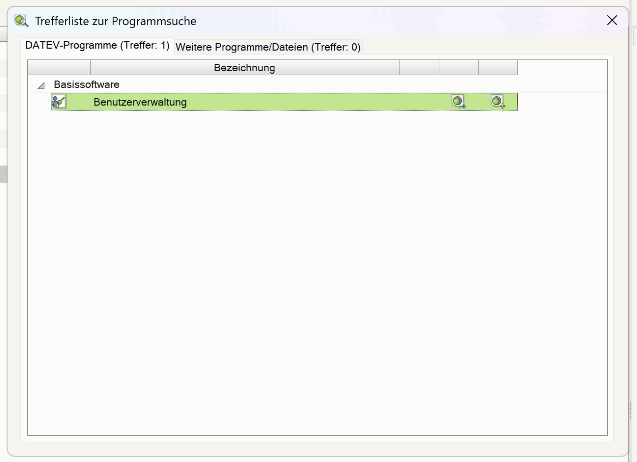
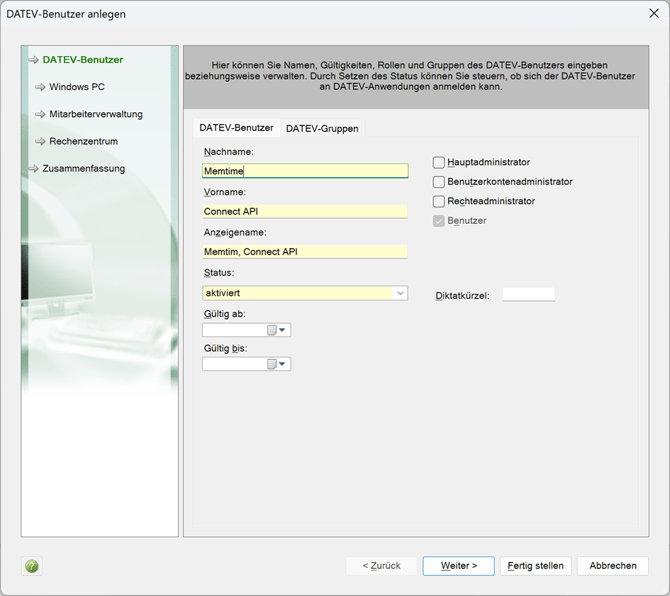
2. In User Management, create the Service User. Only the first and last names need to be entered.
3. The Service User must be linked to a Windows user. If this user does not exist yet, please create it.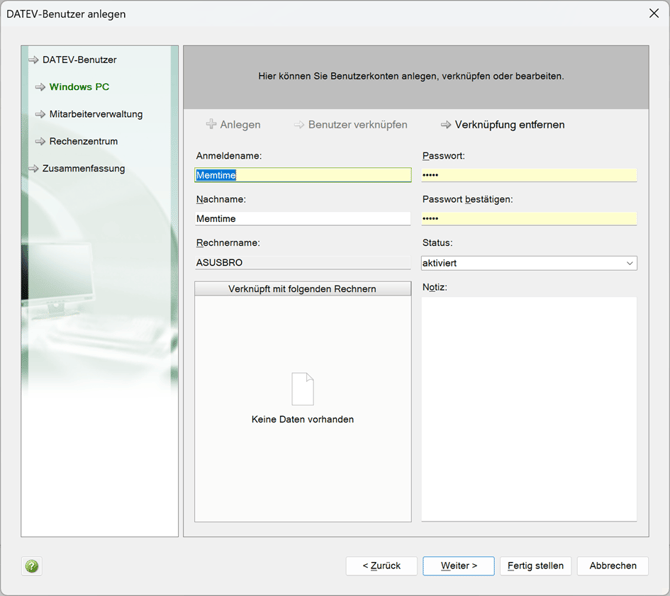
4. The Service User must be assigned to an employee. If this employee does not exist yet, please create it.
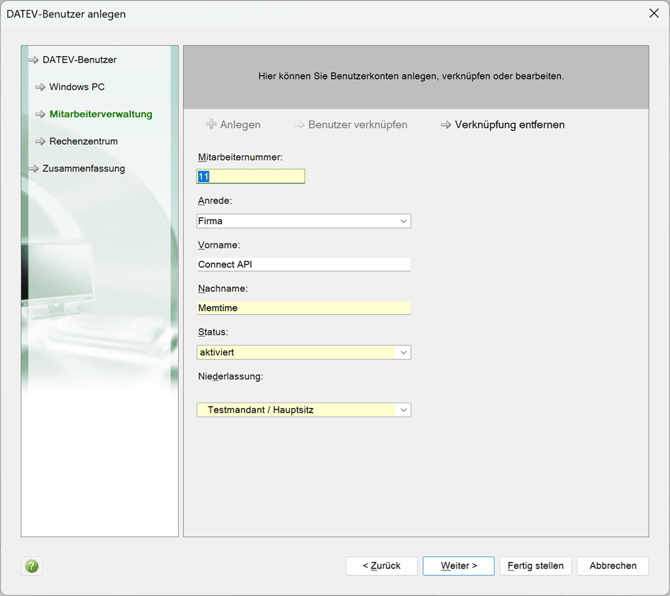
5. The Service User must be linked to a data center user. If this does not exist yet, please create it.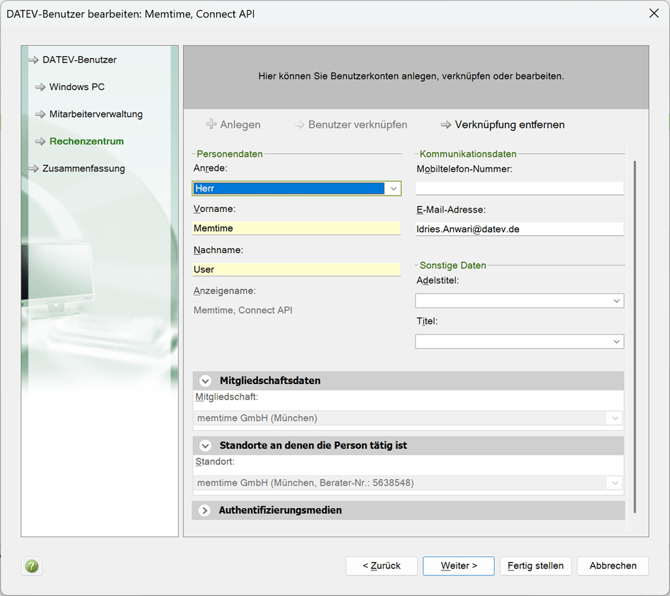
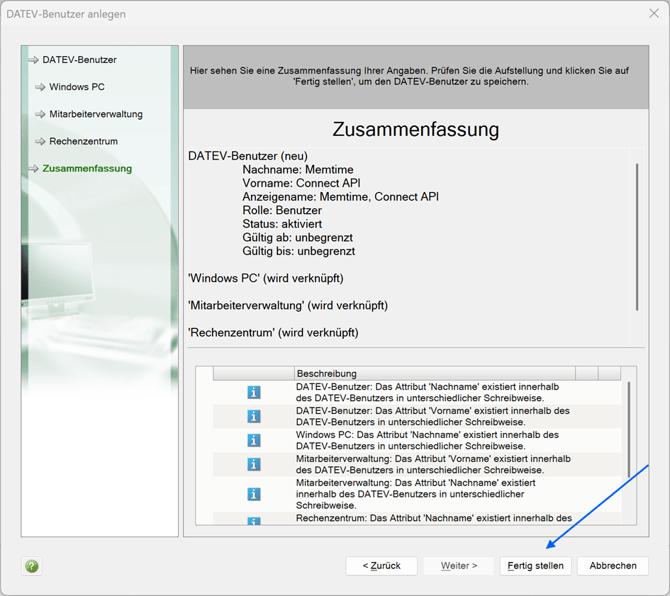
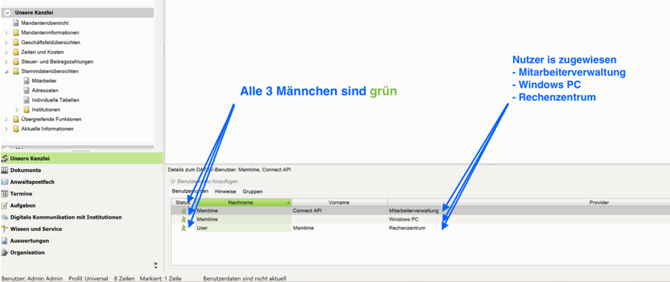
6. Verify that the employee is assigned to all three key areas:
- Employee Management
- Windows PC
- Data Center
After checking, click Finish.
7. All human icons must be green. A yellow warning triangle indicates an error in the setup.
Restart DATEV Arbeitsplatz afterward.
Step 3: Verify Branch Assignment (Important for EO Comfort)
If employee selection lists are empty, the branch setup is usually missing.
Verify:
- Employee has a branch assigned
- Branch number range is released in Global Rights
Path:
Global Rights → Central Master Data → Company → Branch
Step 4: Maintain Required EO Comfort Data
Some chancellerys require additional employee setup for time tracking and billing workflows.
Recommended Minimum Configuration:
| Area | Required |
|---|---|
| Qualification | Category 1 |
| Working Hours | Set target hours |
| Hourly Rate | Maintain Hourly Rate 1 |
Optional:
- vacation entitlement
- cost centers
- billing rates
- data environments
Step 5: Verify Task Permissions
The technical user must be allowed to:
- create tasks
- edit tasks
- appear in employee selection lists
Typical paths:
Eigenorganisation → Task Creation → Task Maintenance
Permission names may differ depending on the DATEV version.
Validation
The setup is correct if:
✅ Employee appears in:
Our chancellery → Employees
✅ Employee can be selected in:
- Responsible
- Processor
✅ Tasks save successfully without:
"Employee does not belong to the chancellery"
Best Practices for Technical Users
Recommended:
- Use dedicated integration accounts
- Assign minimal permissions
- Secure with MFA
- Clearly identify technical users, and avoid interactive daily usage of the user, use strictly for integrations
- Technical integration users remain full DATEV users because DATEV does not support separate technical accounts