![memtime-light-2x.png.png]](https://knowledgebase.memtime.com/hs-fs/hubfs/memtime-light-2x.png.png?height=40&name=memtime-light-2x.png.png)
Step 1: Install ProSonata as a Connected App
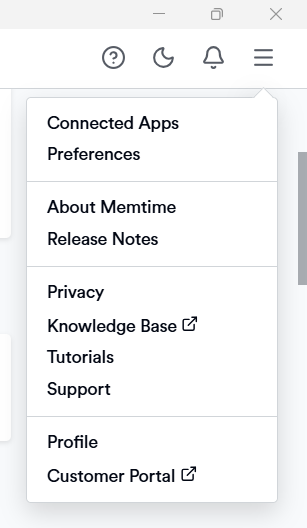
1. Open the Memtime app and click on the menu icon (☰). Select Connected Apps.
2. If ProSonata is not listed among the Connected Apps, click on "Find more Connected Apps" to search for Prosonata and install it.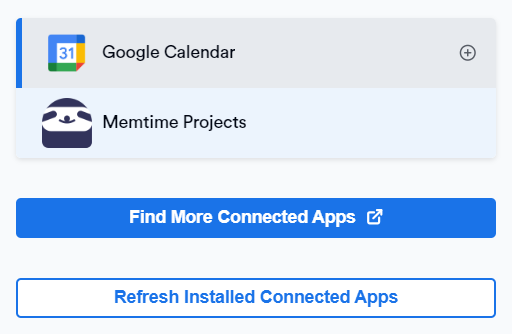
3. The Memtime Marketplace website will open in your browser. Enter ProSonata in the search bar or browse for another Connected App you would like to try.
Once you find ProSonata, click on "Install".

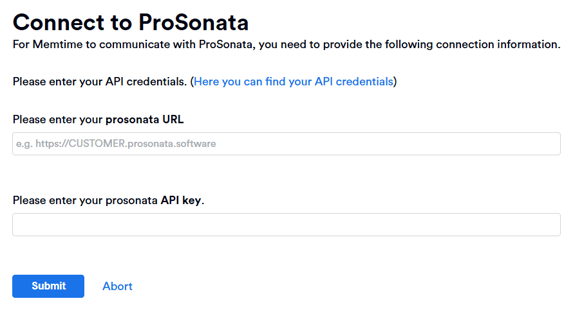
4. A pop-up window will appear asking you to enter your ProSonata API details.
Step 2: Find the API credentials
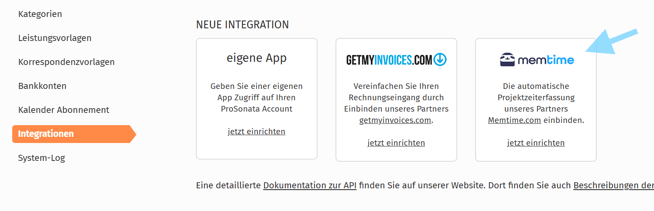
1. You can find your ProSonata API details by navigating directly in ProSonata to the following section:
System → Integrations
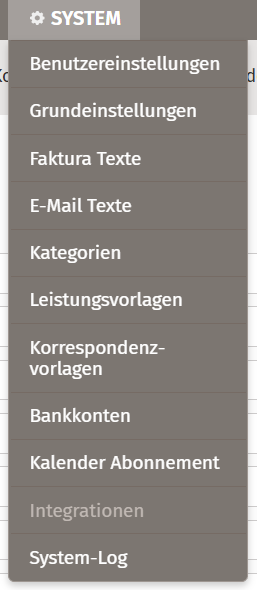
2. Scroll down until the Memtime integration is visible and click on the option "Set up now".
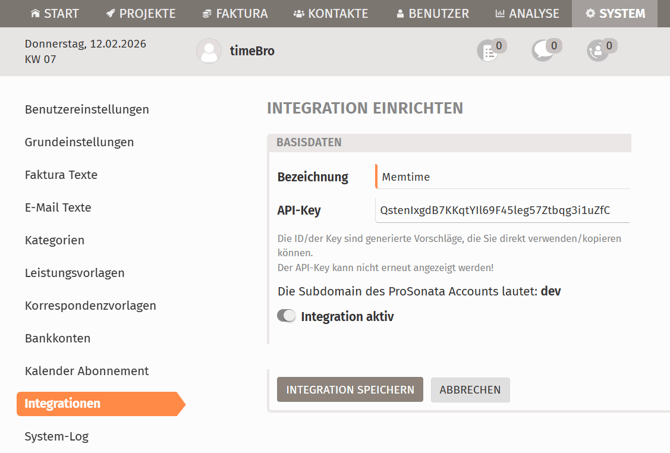
3. Save the API credentials in a secure place so you can reuse them later, then click on "Save integration".
4. After entering your ProSonata API details on the Memtime website, click on "Submit".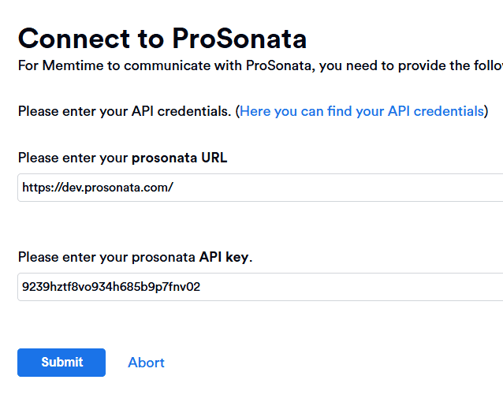
5. Go back to the Memtime app and click on: Memtime menu (☰) → Connected Apps.
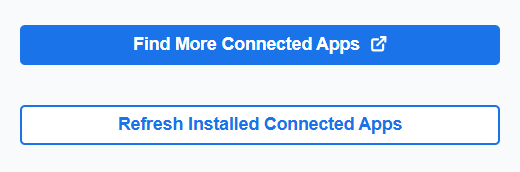
Click on "Refresh installed Connected Apps" to display ProSonata in the list of Connected Apps.
Step 3: Authenticate ProSonata
1. In Memtime, select ProSonata from the list of Connected Apps and click on "Authenticate".
Alternatively, you may be prompted to authenticate automatically.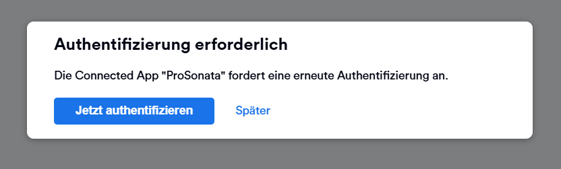
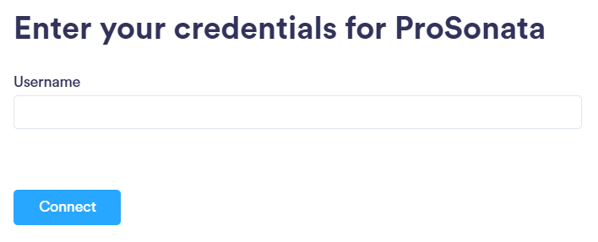
2. A browser window will open. Enter your login details to sign in to your ProSonata account.
3. After the authentication is completed, click on "Refresh installed Connected Apps" to make sure ProSonata is authenticated.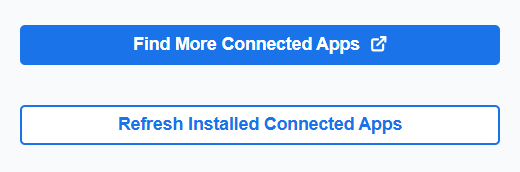
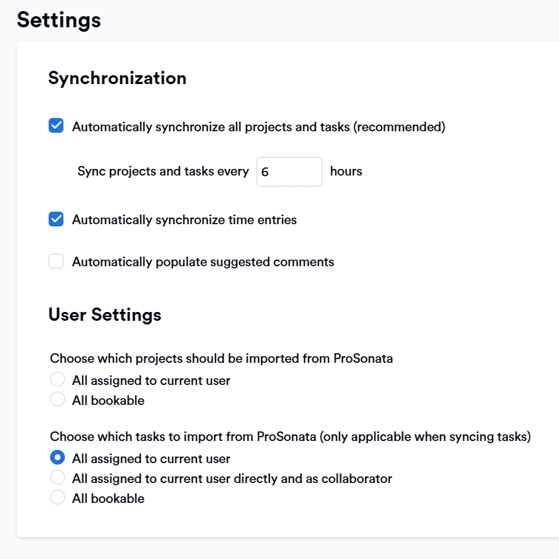
4. Select ProSonata in the Connected Apps menu to open the settings.
Here you can adjust the settings according to your needs.
Step 4: Create ProSonata time entries in Memtime
1. Open the Project Management tab in Memtime.
Click the refresh option to make sure all your projects have been imported.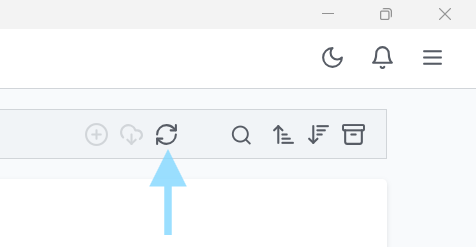
Only projects and tasks assigned to your user are imported by Memtime. Make sure they are assigned to your user before expecting them to appear in Memtime.
2. Go to the Time Tracking tab and create time entries by clicking and dragging in the time entries area.
In the time entry window, you can now select ProSonata as the Connected App.
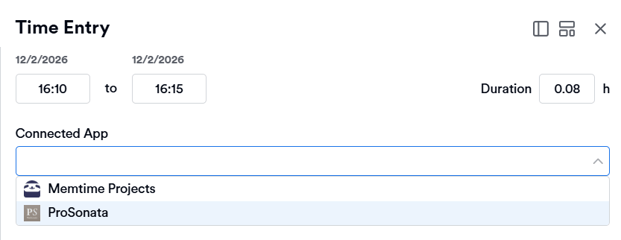
3. As soon as you create a time entry in Memtime for one of your ProSonata tasks, it will automatically sync with your ProSonata account.
On the ProSonata website, you can view your booked times under Projects → My project times and find more detailed information there.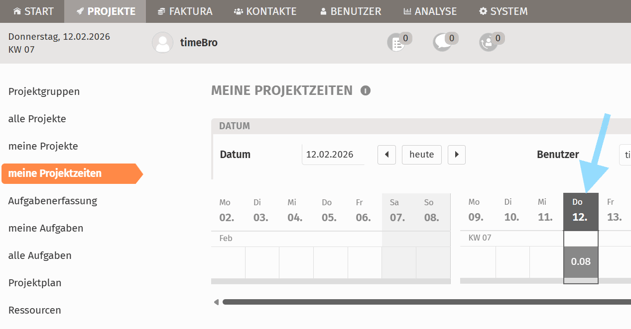
Automatic Synchronization:
Memtime automatically exports time entries created in Memtime to ProSonata.