![memtime-light-2x.png.png]](https://knowledgebase.memtime.com/hs-fs/hubfs/memtime-light-2x.png.png?height=40&name=memtime-light-2x.png.png)
Step 1: Install Teamleader Focus as a Connected App.
To install Teamleader Focus as a Connected App, do the following:
1. Open the Memtime Desktop App. Click the Menu (☰) on the top right. Select Connected Apps.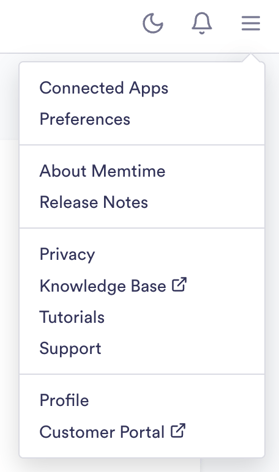
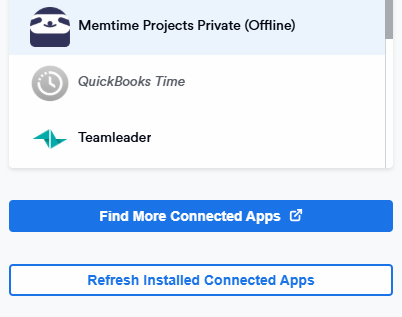
2. If Teamleader Focus is not listed, Click Find More Connected Apps.
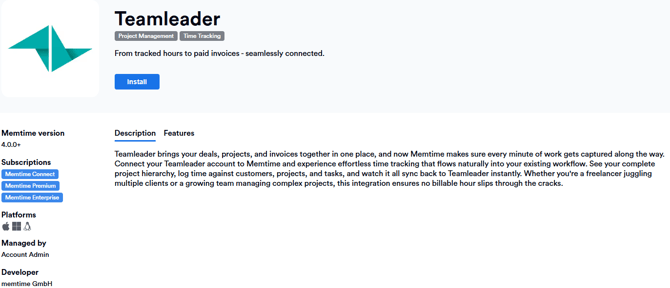
3. Your browser will open the Memtime Marketplace. Search for “Teamleader Focus”. Once you select Teamleader Focus, Click Install button.
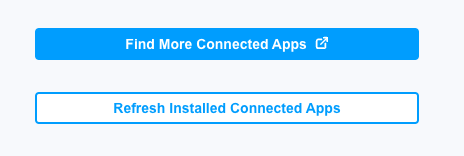
4. Return to Memtime and click Refresh Installed Connected Apps.
Step 2: Authenticate Teamleader Focus in Memtime.
1. Select Teamleader Focus in your Connected Apps in Memtime and click on Authenticate.

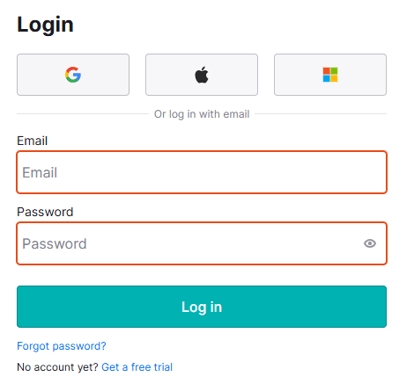
2. This will lead you to the Teamleader Focus page to enter your credentials. Please, introduce them.
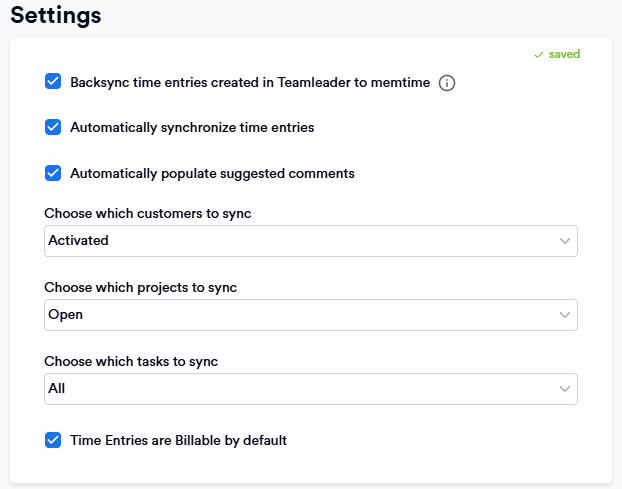
3. After authenticating Teamleader Focus, you can check some settings according to your preferences.
Step 3: Create Teamleader Focus time entries in Memtime
1. Open the Project Management tab in Memtime.
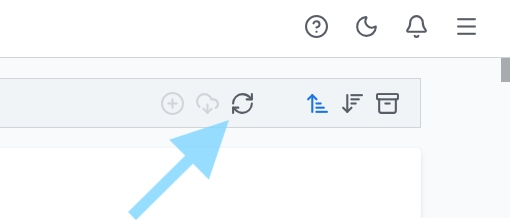
Click the refresh option to make sure all your projects have been imported.
2. Go to the Time Tracking tab and create time entries.
In the time entry window, you can now select Teamleader Focus as the Connected App.
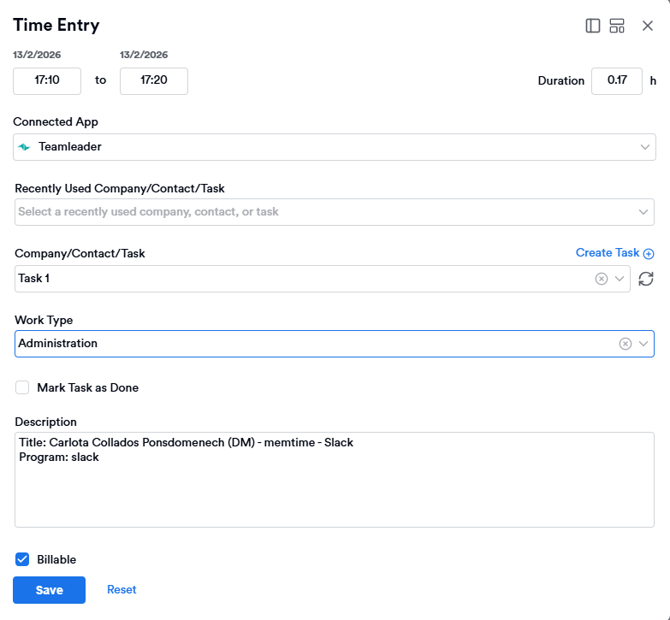
3. As soon as you create a time entry in Memtime for one of your Teamleader Focus tasks, it will automatically sync with your Teamleader Focus account.
When a time entry is exported to Teamleader Focus, you will see a little checkmark symbol showing up.
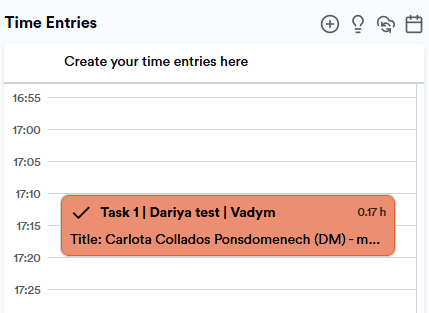
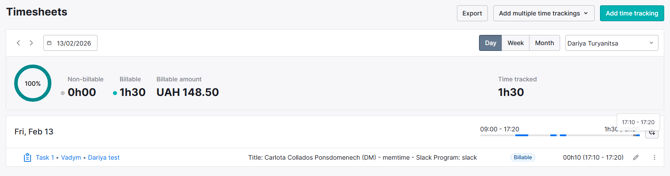
This means that when you go to the Teamleader Focus website, the time entry you created with Memtime, will also be visible in the Timesheets section of Teamleader Focus.
That's it! Now you can use the Teamleader Focus integration in Memtime. Here's a video that shows the complete installation process, as well as how to create and export time entries: