![memtime-light-2x.png.png]](https://knowledgebase.memtime.com/hs-fs/hubfs/memtime-light-2x.png.png?height=40&name=memtime-light-2x.png.png)
If Memtime is not opening automatically when you start your Windows computer, even though you’ve enabled the option “Open Memtime automatically after you log into your computer”, this is usually caused by a Windows feature called Fast Startup.
Windows Fast Startup (also called Fast Boot) is a feature in Windows 10 and 11 designed to make your computer start faster. Instead of doing a complete shutdown, Windows saves some system information to a file and then reloads it at the next boot.
-
Benefit: Your PC boots faster.
-
Downside: Some applications (like Memtime) may not start properly because Windows skips certain startup processes.
Quick Fix: Disable Windows Fast Startup
Disabling Fast Startup usually solves the problem and ensures Memtime opens correctly.
Step 1: Open Control Panel
-
Press Windows + R, type
control, and hit Enter,
or search for Control Panel in the Start menu.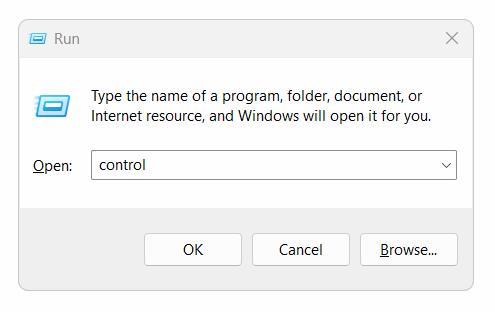
Step 2: Go to Power Options
-
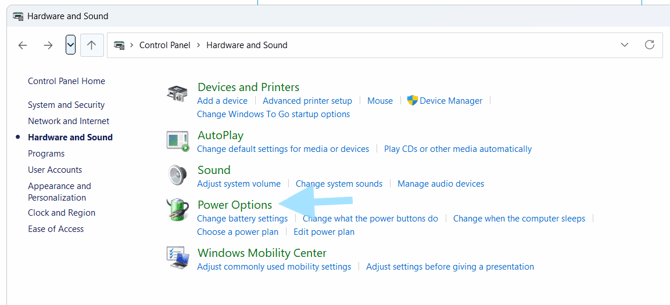
Click Hardware and Sound
-
Click Power Options
Step 3: Access Power Button Settings
-
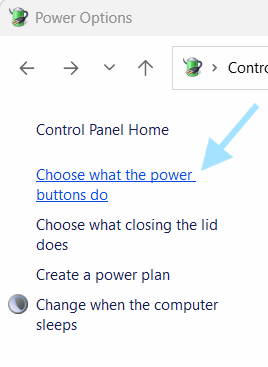
On the left sidebar, click Choose what the power button does
Step 4: Change Settings
-
Click Change settings that are currently unavailable
(you may need administrator privileges)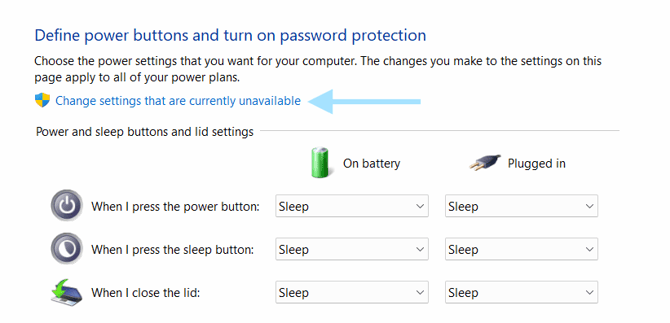
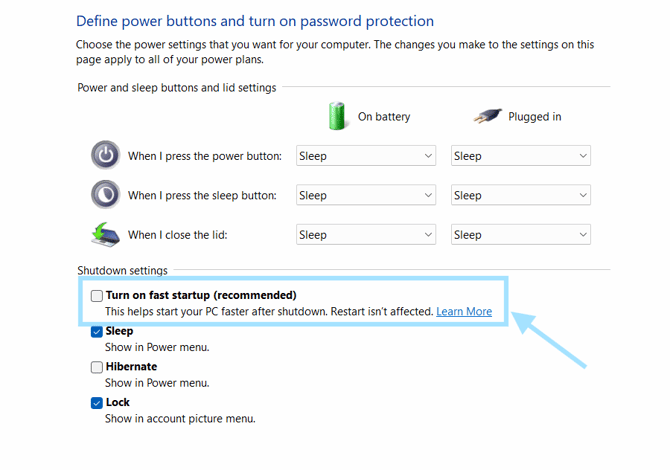
Step 5: Disable Fast Startup
-
Uncheck the box next to Turn on fast startup (recommended), and click Save Changes.
Step 6: Restart Your Computer
-
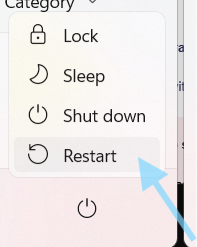
Perform a full Restart (not just Shutdown + Power on)
-
After rebooting, Memtime should now launch automatically.
How to verify the fix
After you disable Fast Startup:
-
Test a complete shutdown
-
Shut down your PC, wait 10 seconds, then power it back on.
-
Check if Memtime’s icon appears in the system tray within 2 minutes.
-
-
Check Memtime tracking
-
Open Memtime
-
Make sure time tracking is active
-
Confirm your activities are being recorded
-
Will disabling Fast Startup slow down my PC?
- Boot time may increase slightly (10–30 seconds).
-
Reliability of application startup will improve significantly.
-
System performance after startup is not affected.
If Memtime still doesn’t start automatically after trying this fix, please contact our Support Team—we’ll be happy to help you troubleshoot further.