![memtime-light-2x.png.png]](https://knowledgebase.memtime.com/hs-fs/hubfs/memtime-light-2x.png.png?height=40&name=memtime-light-2x.png.png)
Reporting Tab Overview
In the Reporting tab, you will find useful graphs showing:
- Billable vs. Non-billable hours
- Billability Graph
- Project Times
- Productivity Levels
- Activity Types
- Hours Tracked per Selected User
2-Way Sync for Complete Time Tracking
Time entries from the Memtime app are automatically synced to the cloud. With 2-way sync, entries from other devices can also be imported, so you avoid double-booking and see all your hours in one place.
To import missing entries into Memtime, you can go to the Time Tracking tab, and trigger the sync with this button:
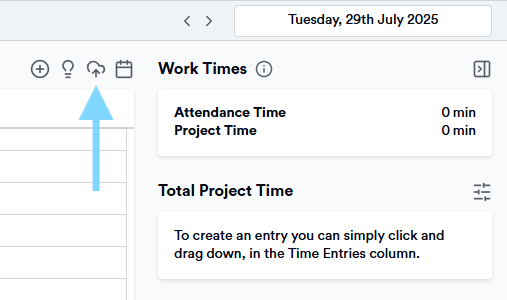
Once synced, you can create one report that includes all your tracked hours, no matter where the time was recorded.
Team Reports
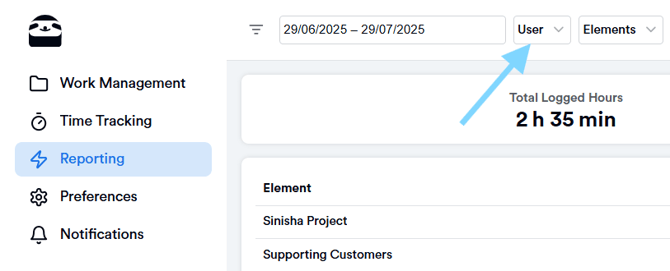
Since the time entries are automatically exported, you can create reports with your whole team’s data in one place. You can also filter by specific users in your workspace.
To do this, open the Reporting tab and select the users you want to include in your timesheet.
Automatically tracked activities are still only stored locally on your device to ensure the highest level of privacy. Only time entries that you have booked in the Time Entry column are synchronized to the cloud.
Custom Reports by Project, Customer, or Other Entity
You can create reports for specific projects, customers, or categories. This makes billing easier and helps you analyze hours faster. Just go to the Reporting tab and select the entity you want to filter by.
If you click on a specific project in Project Times, this will automatically adjust all graphs to show data for this project only within the chosen time period: 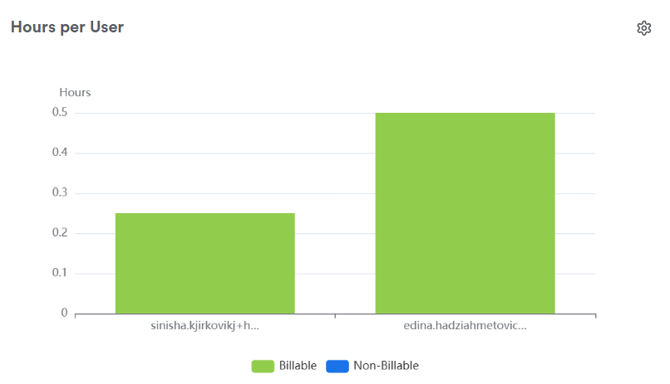
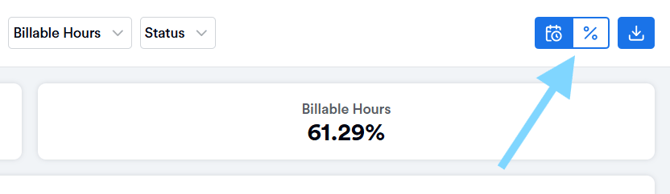
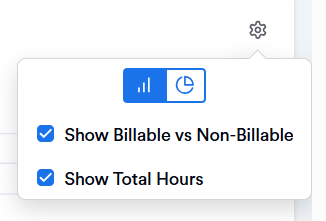
For each graph in the Reporting tab, you can also choose between different graph styles to fit your preference:
- Pie charts
- Bar charts
- Show Billable vs. Non-Billable hours
- Show Total Hours
Exporting Reports
You can export your reports in four formats: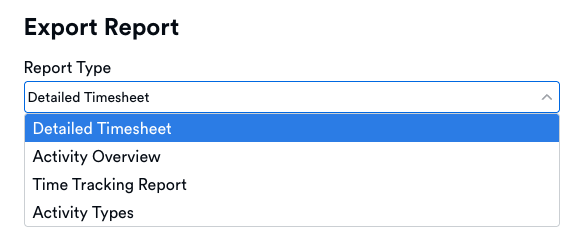
1. Activity Overview
Exports Time Entries by date, user, activity type, type of work, and comments, based on your selected filters and date range.
Best for:
Attaching to invoices or sharing a structured overview of recorded work with clients.
2. Detailed Timesheet
Provides a detailed log of all Time Entries within the selected date range, including:
-
Daily entries
-
Status
-
Activity type
-
Type of work
-
Totals
Best for:
Tracking individual contributions and reviewing detailed daily work logs.
3. Time Tracking Report
Exports data directly from the Time Tracking section, including:
-
User
-
Booked time
-
Start and end times
-
Activity type
-
Type of work
-
Comments
-
Status
Best for:
Analyzing tracked time across different elements and gaining deeper insights into how time is recorded.
4. Activity Types Report
Exports time spent per activity type for each element.
Best for:
Understanding how effort is distributed across different categories of work and identifying patterns in time allocation.
Support
Need help with the article or have any questions? Reach out to us anytime at: