![memtime-light-2x.png.png]](https://knowledgebase.memtime.com/hs-fs/hubfs/memtime-light-2x.png.png?height=40&name=memtime-light-2x.png.png)
Since the launch of the cloud version of Memtime Projects, a new permissions option has been added in 🔗Customer Portal -> User Management -> Projects Manager.
New permission level: Projects Manager
From now on, every user within a Memtime account can be assigned the new Projects Manager role.
This new permission level allows the Projects Manager to manage permissions within Memtime Projects.
The new Memtime Projects introduces two permission levels:
-
Projects Manager
-
Regular Users
The Projects Manager has full control over what actions and features are available to other users.
Who has access to the new Memtime Projects?
All users who belong to a Memtime account automatically have access to the new Memtime Projects — by default as regular users.
To assign the Projects Manager role to someone:
-
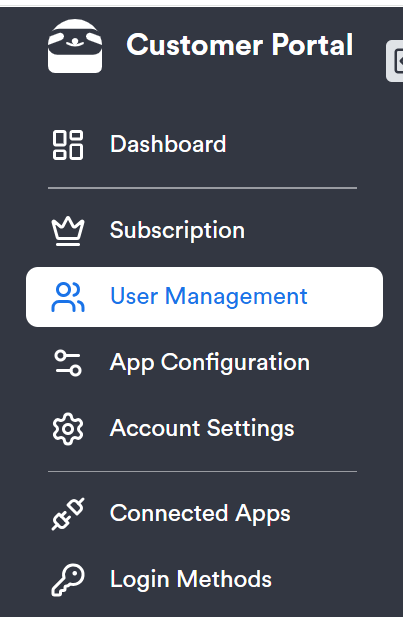
Go to your 🔗Customer Portal.
-
Open User Management.
-
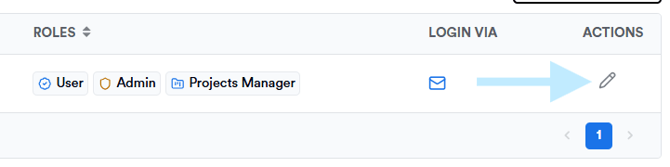
Click the Edit button (pencil icon).
-
Select Memtime Projects Manager.

If the user is not yet part of your Memtime account, please follow 🔗this article to learn how to invite new users.
Removing users from Memtime Projects
If you remove a user from Memtime Projects, this change will also apply to your Memtime account.
To do so, follow the steps described in 🔗this article.
Managing permissions within Memtime Projects
Within Memtime Projects, users can be either:
-
Regular users, or
-
Projects Managers
The key difference is that Projects Managers can decide which functions are available only to them, and which ones are also accessible to other users.
To manage these permissions:
-
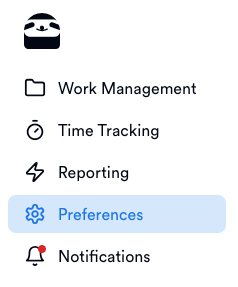
In the web version of Memtime Projects, as a Projects Manager, go to Preferences.
-
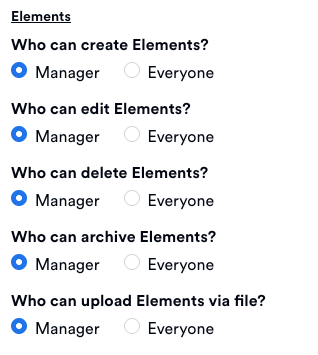
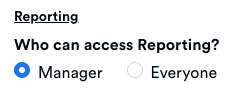
You’ll find a list of all available permissions.
-
By default, all permissions are granted only to the Projects Manager.
-
Select which permissions should also be available to regular users.
-
Click Update Permissions to save your changes.

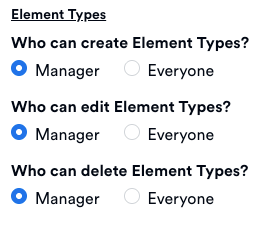
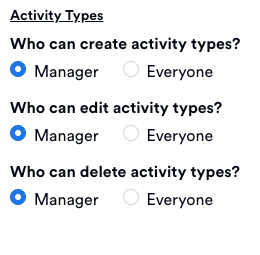
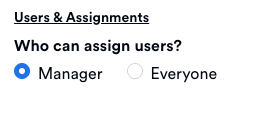
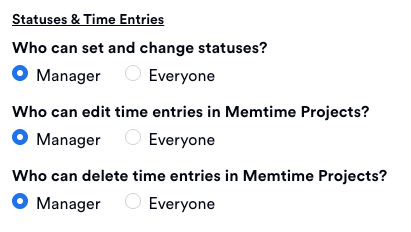
Permissions are grouped into the following categories:
-
Elements
-
Element Types
-
Activity Types
-
Users & Assignments
-
Statuses & Time Entries
-
Reporting
What to do if you don't see "+"symbol to create new projects?
If you do not see the + button in Memtime, either in the Project Management tab or in the time entry window, this usually means that your user account does not currently have permission to create new elements.
In this case, please reach out to the person in your team who has Memtime Administrator rights and ask them to do one of the following:
-
Give you Manager rights in the Customer Portal, or
-
Enable the option Everyone under Who can create Elements
Once one of these permissions is updated, the + button should appear for you.
Support
Need help with the article or have any questions? Reach out to us anytime at: