![memtime-light-2x.png.png]](https://knowledgebase.memtime.com/hs-fs/hubfs/memtime-light-2x.png.png?height=40&name=memtime-light-2x.png.png)
Important: Microsoft Email + Calendar only supports Microsoft accounts, such as Outlook.com and Microsoft 365 accounts. Although the Outlook desktop app allows you to add email accounts from other providers (e.g., Gmail, Yahoo, or Apple), emails from these accounts cannot be enriched with additional email details by Memtime. For non-Microsoft accounts, Memtime will only track the email subject.
Step 1: Install Microsoft Email + Calendar as a Connected App
- Open the Memtime app and click on the Menu Icon (☰). Select Connected Apps.
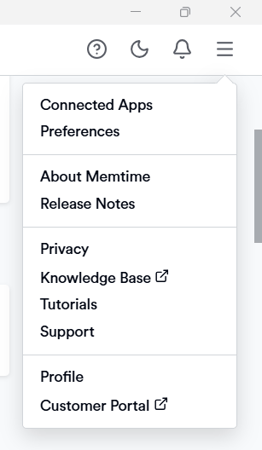
- If Microsoft Email + Calendar is not listed among the Connected Apps, click on Find more Connected Apps to search for it and install it.
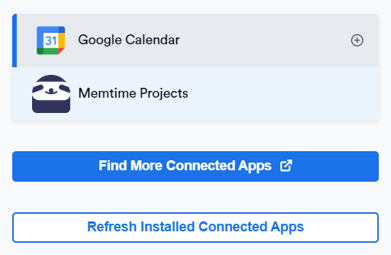
- The Memtime Marketplace website will open in your browser. Enter Microsoft Email + Calendar in the search bar or browse for another Connected App you would like to try.
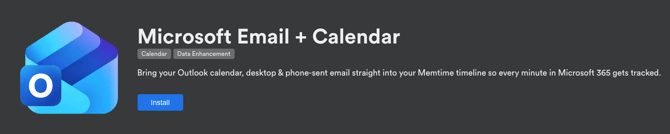
Once you find Microsoft Email + Calendar, click on Install.
Step 2: Authenticate Microsoft Email + Calendar
- In Memtime, select Microsoft Email + Calendar from the list of Connected Apps and click on Authenticate.

Alternatively, you may be prompted to authenticate automatically.
- A browser window will open. Sign in with your Microsoft 365 account.
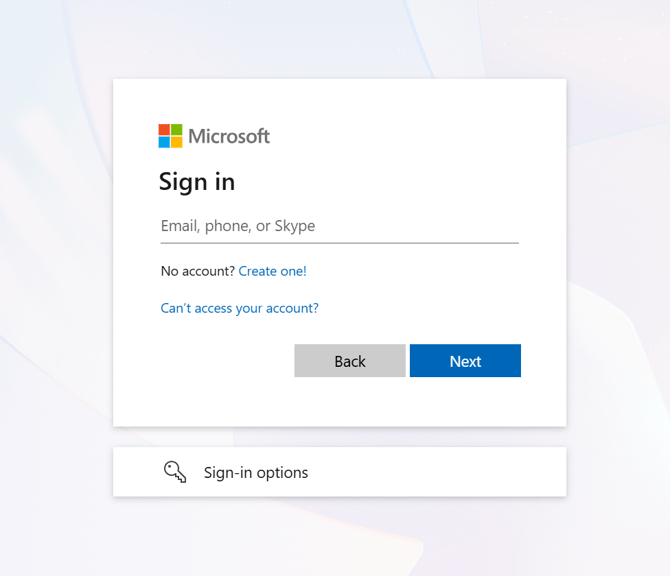
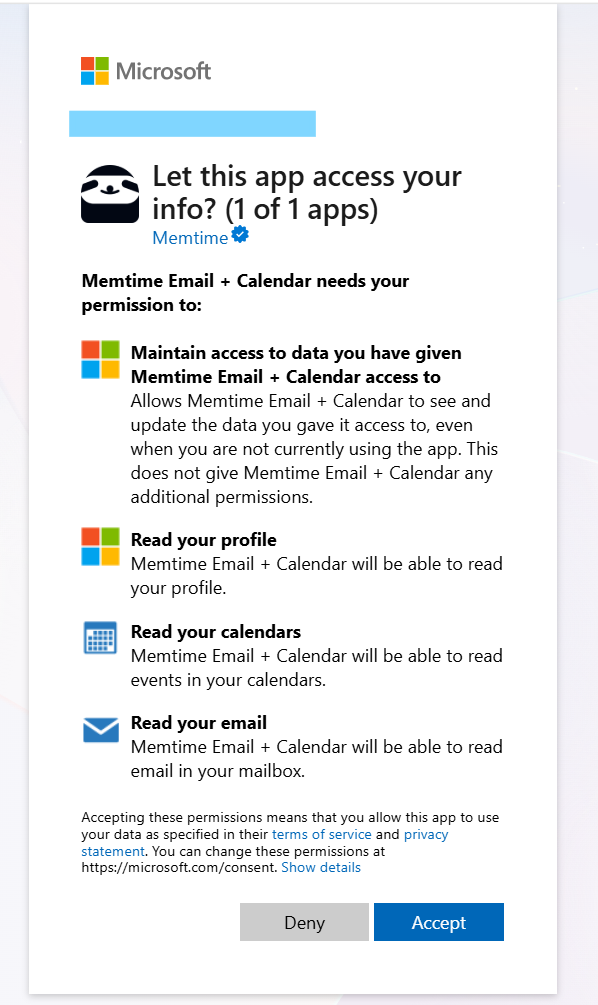
- Follow the instructions to allow Memtime to access your Microsoft account and grant the required permissions.
- Once the authentication is completed, the connected Microsoft account will be displayed in the Authentication section.
If necessary, you can click on Re-Authenticate to reconnect your Microsoft account or switch to a different account.
Step 3: Configure the Microsoft Email + Calendar settings
Once you have authenticated the Connected App, you can configure which Microsoft data you would like to use with Memtime.
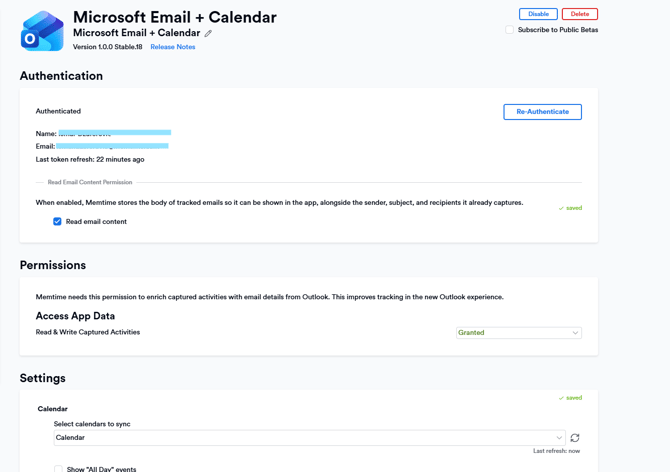
Calendar
Under the Calendar settings, you can select one or more Microsoft calendars to sync with Memtime.
You can also configure the following options:
- Show "All Day" events – Enable this option to display all-day events in the Memory Aid.
- Show only confirmed events – Enable this option to hide tentative or unconfirmed events.
You can click Refresh next to the calendar selection to trigger an immediate synchronization.
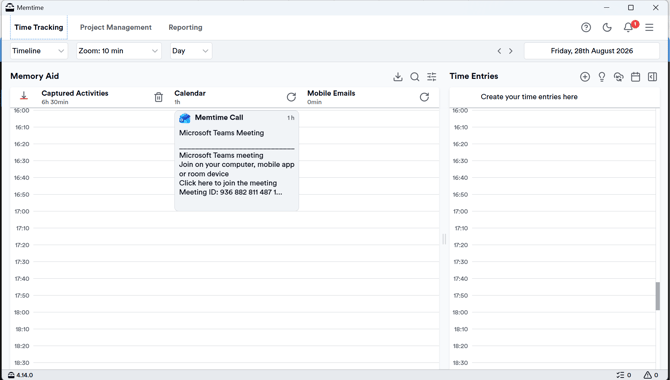
Your synced calendar events will appear in the Calendar column of the Memory Aid.
Under the Email settings, you can enable Read email content.
.png?width=670&height=381&name=image%20(1).png)
When enabled, Memtime can retrieve details from the email currently open in Outlook and use them to enrich the corresponding captured activity.
This can include:
- Email subject
- Sender
- Recipients
- Outlook link
- Email body
This option is disabled by default.
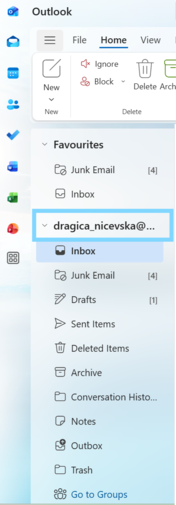
Important: To ensure that Memtime can correctly identify and enrich Outlook activities, the Outlook sidebar must remain open.
Phone sent emails
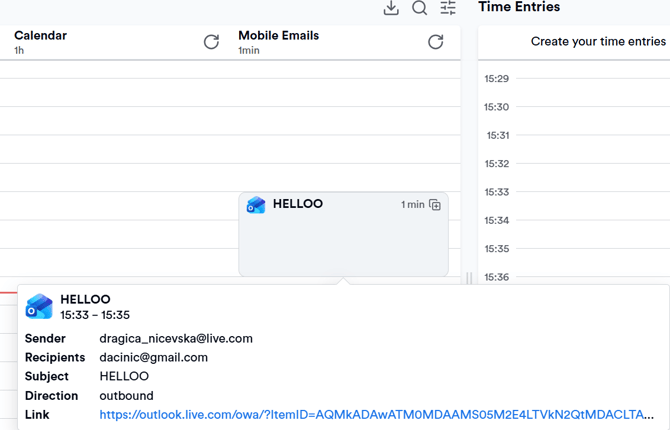
Memtime can also display emails sent from Outlook on your phone in the Memory Aid.
Since these emails are not associated with a desktop activity, you can choose how Memtime calculates their duration.
Enable Calculate the duration automatically if you want Memtime to calculate the duration based on the time between starting and sending the email.
For example, if you start composing an email at 15:03 and send it at 15:11, Memtime will calculate a duration of 8 minutes.
If automatic calculation is disabled, you can set a fixed duration for each phone-sent email. The default duration is 5 minutes.
Phone-sent emails appear in the Mobile Emails column of the Memory Aid.
Step 4: Enrich your Outlook activities
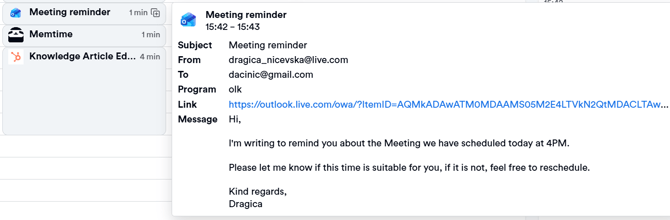
If you have enabled Read email content, Memtime will enrich your captured Outlook activities with information from the email you are working on.
This is particularly useful when using the new Outlook experience, where the open email is no longer displayed in the window title.
The enriched email information can be viewed by hovering over the corresponding activity in the Captured Activities column of the Memory Aid.
There is currently a limitation with email enrichment on Linux: it works in the same way as the existing Calendar app, with the same level of functionality.
Step 5: Create time entries using the imported data
The Microsoft Email + Calendar data appears in the Time Tracking → Memory Aid.

You will see the following columns:
- Captured Activities – Your regular desktop activity, including enriched Outlook activities when email content reading is enabled.
- Calendar – Events imported from your selected Microsoft calendars.
- Mobile Emails – Emails sent from Outlook on your phone.
You can use these activities to create time entries by clicking and dragging them into the Time Entries area.
Please note that calendar events and emails are displayed as activities in the Memory Aid and are not automatically created as time entries.
Important information
- The Read email content permission is disabled by default and must be enabled if you want to enrich Outlook activities with email details.
- The Outlook sidebar must remain open for email enrichment to work correctly.
- Emails or drafts without a subject may not always be matched correctly with the corresponding captured activity.
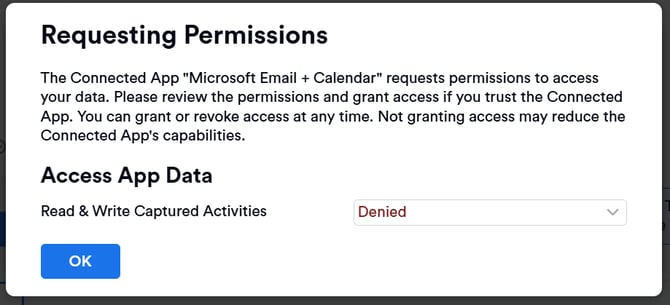
- If you revoke the Read & Write Captured Activities permission, Memtime will no longer be able to enrich captured Outlook activities with email details.
Support
Need help with the article or have any questions? Reach out to us anytime at: