![memtime-light-2x.png.png]](https://knowledgebase.memtime.com/hs-fs/hubfs/memtime-light-2x.png.png?height=40&name=memtime-light-2x.png.png)
Step 1: Install NFON as a Connected App
1. Open the Memtime app and click on the Menu Icon (☰). Select Connected Apps.
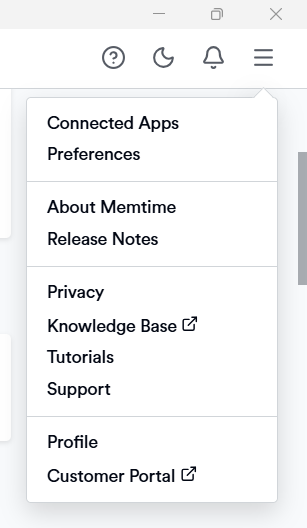
2. If NFON is not listed among the Connected Apps, click on Find more Connected Apps to search for NFON and install it.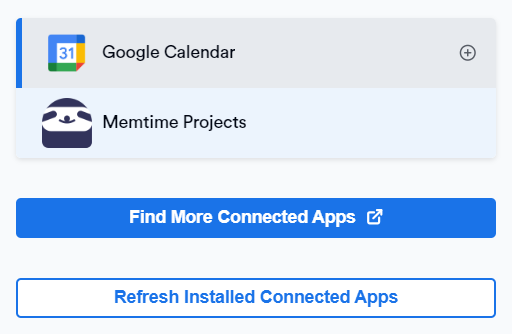
3. The Memtime Marketplace website will open in your browser. Enter NFON in the search bar or browse for another Connected App you would like to try.
Once you find NFON, click on Install.

Step 2: Authenticate NFON
1. In Memtime, select NFON from the list of Connected Apps and click on Authenticate.
Alternatively, you may be prompted to authenticate automatically.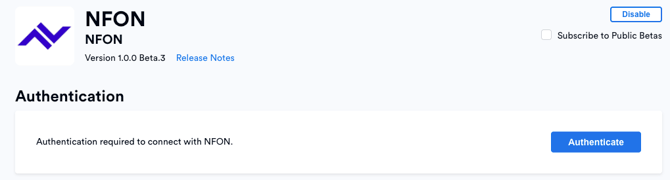
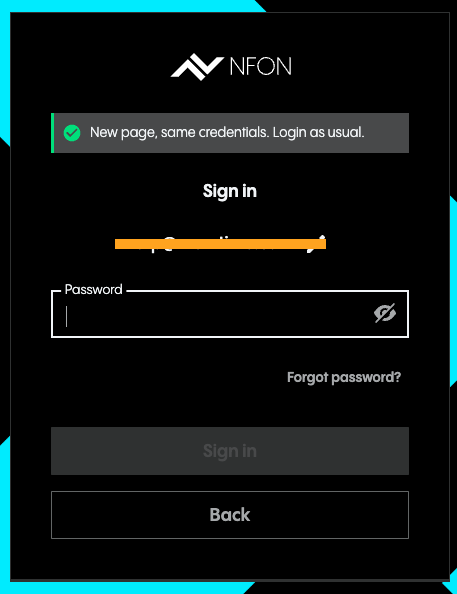
2. A browser window will open. Enter your login details to sign in to your NFON account.
3. After the authentication is completed, click on Refresh installed Connected Apps to make sure NFON is authenticated.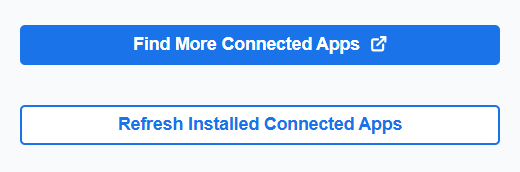
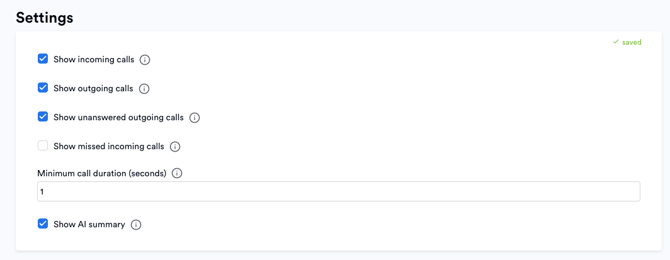
4. Select NFON in the Connected Apps menu to open the settings.
Here you can adjust the settings according to your needs.
Step 3: Create Time Entries in Memtime from NFON Calls
1. Go to the Time Tracking tab in Memtime. You will now see your NFON calls displayed in the Calls column.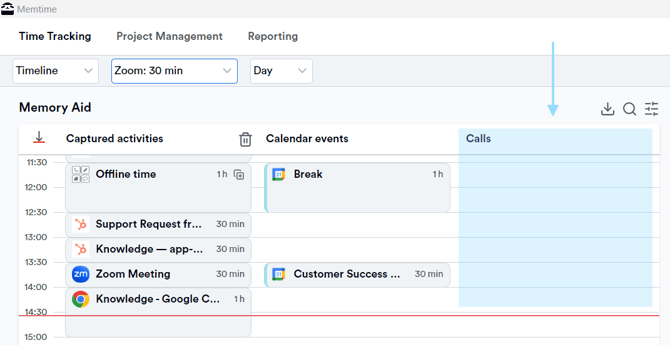
2. This integration lets you create time entries directly from your calls. Simply hover over a call and click the plus button to add a time entry.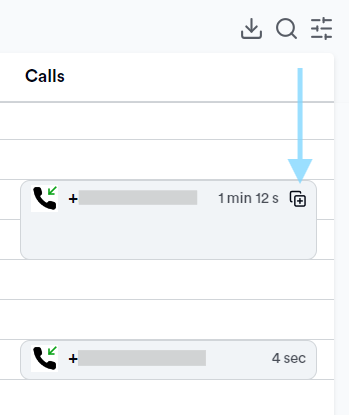
Automatic Synchronization: Memtime automatically imports calls from NFON, making the creation of time entries simpler than ever.
Support
Need help with the article or have any questions? Reach out to us anytime at:
🔗 support@memtime.com