![memtime-light-2x.png.png]](https://knowledgebase.memtime.com/hs-fs/hubfs/memtime-light-2x.png.png?height=40&name=memtime-light-2x.png.png)
If you want our team to check if we can integrate with your project management software, feel free to request the integration here: 🔗Contact Us.
Overview
This article is intended to help you quickly filter captured activities in Memtime, and see how much time was tracked on them.
Even if your project management system is not one of the 🔗Connected Apps listed on our website (like DATEV EO Classic), you can still have automated time tracking in Memtime, without even changing your existing workflow.
Filtering activities by client, project, or keyword
1. In the Captured Activities column, use a recurring keyword (such as a client name, project name, or abbreviation).
The best first step is to check what the Memory Aid shows repeatedly for you within one day and use that exact term to filter your daily activities list based on it.
You can do this by clicking the search button located above the Memory Aid in the Time Tracking tab here: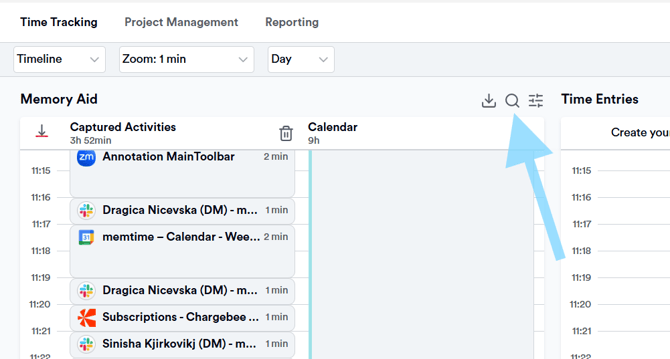
2. When you search for a keyword here, Memtime instantly filters all activities containing that term.
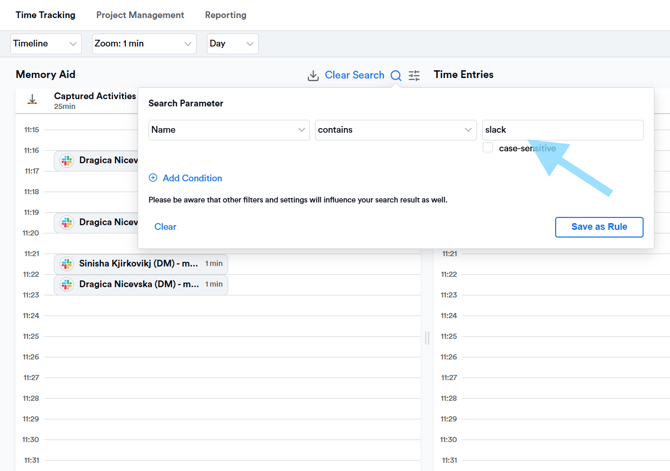
3. This allows you to see at a glance how much total time you spent on that specific type of work in a given day.
If you work with DATEV EO Classic or another system that Memtime does not integrate with and prefer not to recreate your clients and orders in Memtime, you can use this total of tracked time to enter your hours directly in DATEV.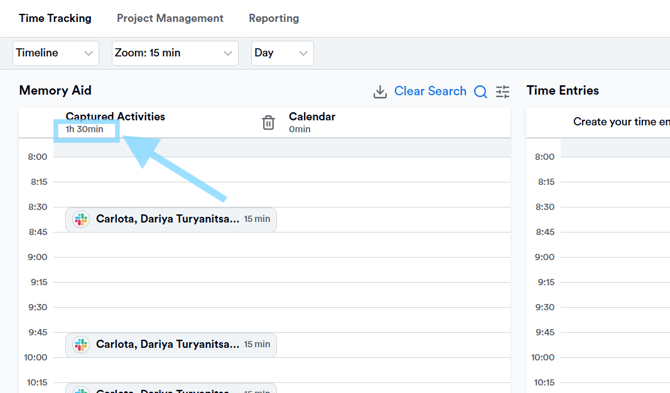
If you want to create time entries in Memtime with the filtered results, you can press CTRL + A, right-click on one of the highlighted activities, and select the option Create Time entries for Selection.
For more details on how you can create time entries in Memtime, check out this article:
Summary
This workflow allows you to:
- Quickly process an entire day of automatically tracked work
- Avoid manual single-entry creation
- Efficiently transfer activities into your time tracking system
- Reduce duplicate data entry effort
Support
Need help with the article or have any questions? Reach out to us anytime at: