![memtime-light-2x.png.png]](https://knowledgebase.memtime.com/hs-fs/hubfs/memtime-light-2x.png.png?height=40&name=memtime-light-2x.png.png)
Before you start
To import elements into Memtime Projects, you need a CSV or Excel file containing your customers, projects, and tasks.
You can either:
- create the file manually using a template, or
- export it from your project management software (e.g., Clio, Harvest, ClickUp, etc.)
Uploading the file to Memtime Projects
To upload the list to Memtime Projects, please do the following:
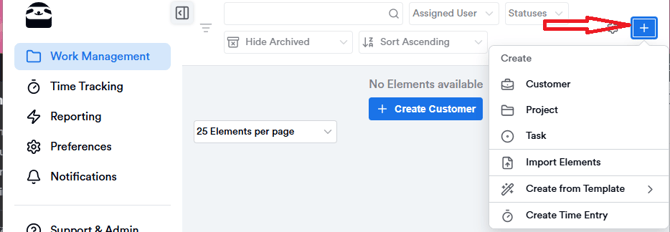
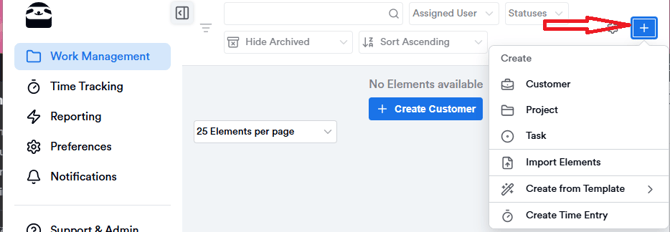
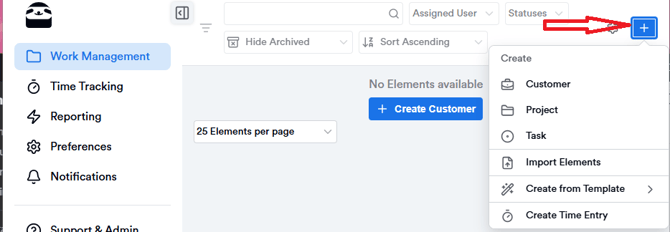
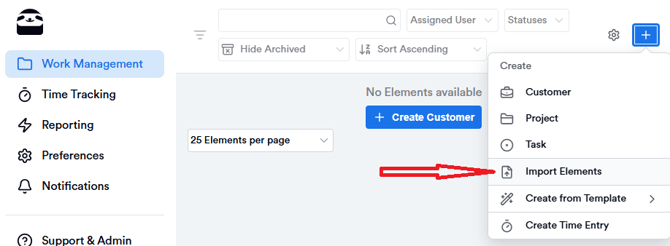
1. Go to the Memtime Projects → Work Management tab and click on the + button on the top right:
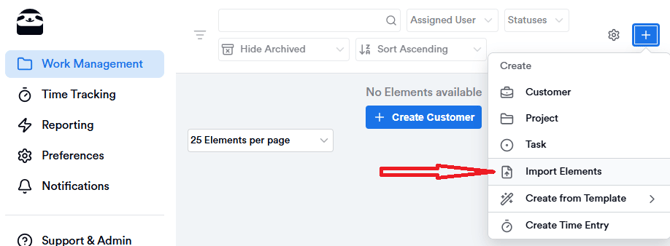
2. Click on Import Elements:
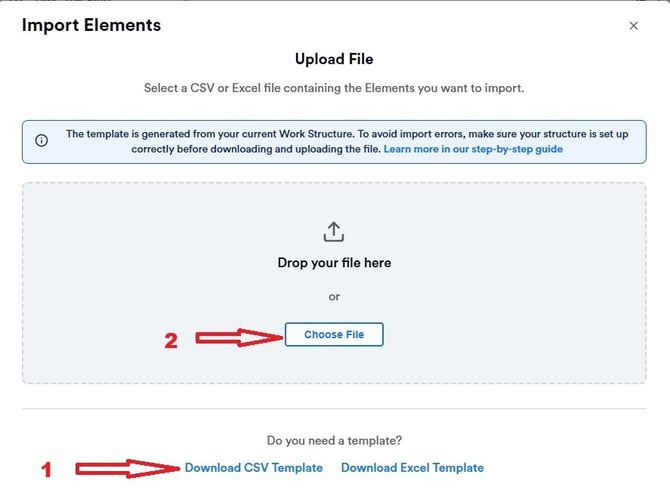
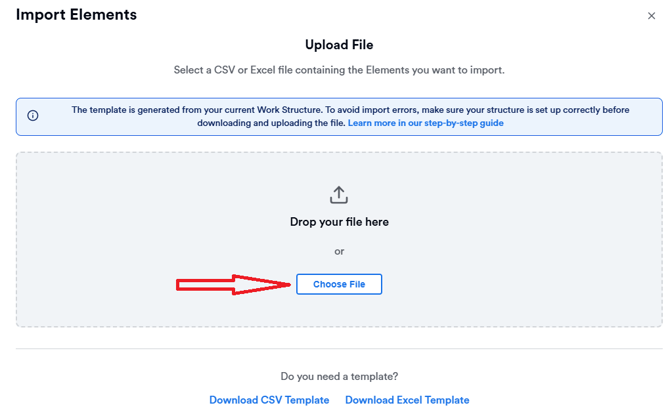
3. You will be prompted to:
-
Download a Template (to create the list manually), or
-
Upload an existing file
Option 1: Download a template (recommended)
Please note that the template is generated from your current Work Structure. To avoid import errors, make sure your structure is set up correctly before downloading and uploding the file.
1. Download the template you need (in this article we will show the Excel one as an example).
The templates have columns corresponding to your Work Management tab.
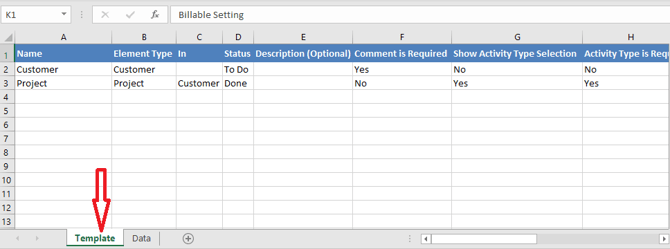
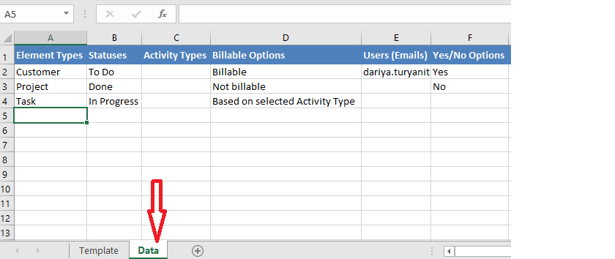
2. You will see 2 tabs in the same document:
-
Template - where you actually input your data.
-
Data - showing you your Work Management structure.
3. In the Template tab, enter the names of your Customers, Projects, and Tasks, specify their parent items, and fill in the required information such as Activity Types, Billable Options, and any other relevant fields.
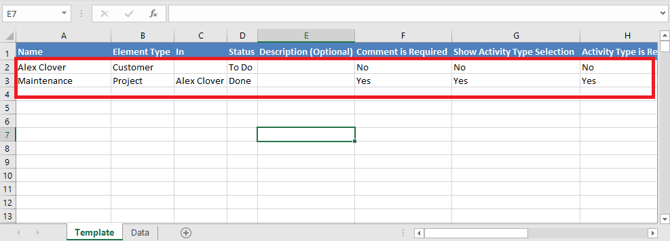
Please note that the screenshots presented here are only for the example purposes, you might have different columns and parameters to fill in depending on your Work Management structure.
4. When you are done editing the file, save it and click on the + button again:
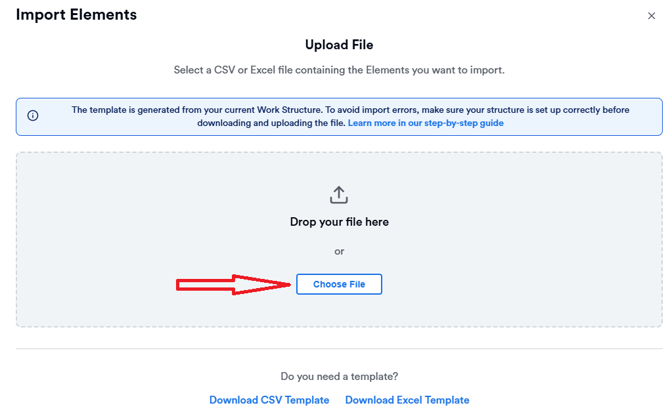
5. Select Choose File and upload the file:
6. You will see an initial preview of the uploaded file. Review it and click Next to proceed.
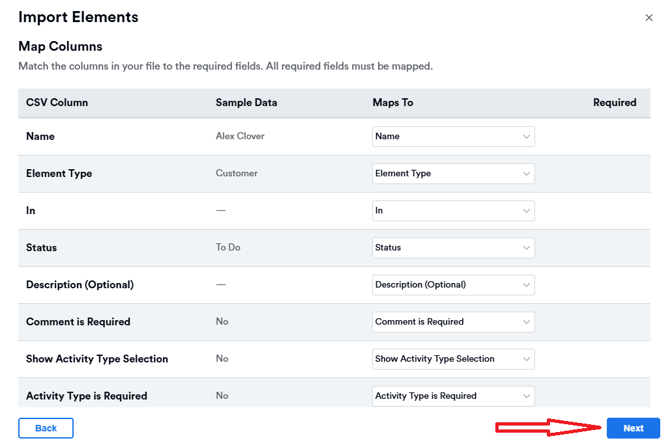
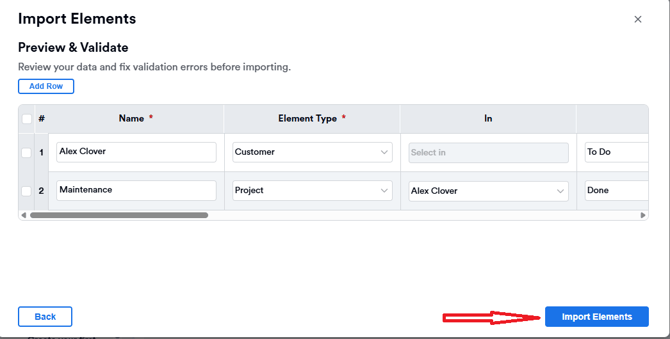
7. A final preview window will appear, allowing you to review and apply any necessary changes. Once everything looks correct, click Import Elements.
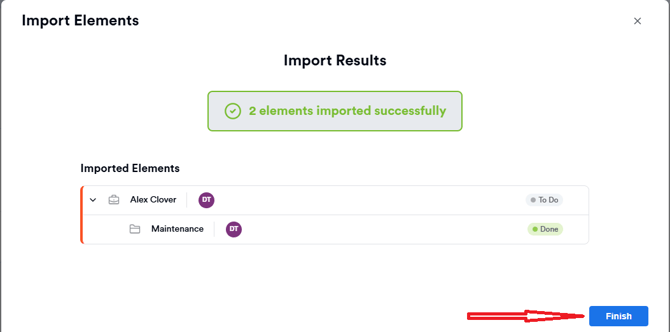
8. You will see the confirmation window, click Finish:
Option 2: Upload your existing file
You can also upload a file exported from another project management system.
1. Download the list from your project management software.
2. Go to the Memtime Projects → Work Management tab and click on the + button on the top right:
3. Click on Import Elements:
4. Click on Choose file:
5. Select the file you downloaded. A preview window will appear showing your data.
Keep in mind that different project management systems may structure their data differently. If the preview shows any errors, you may need to adjust the file to fill missing information or correct formatting before proceeding.
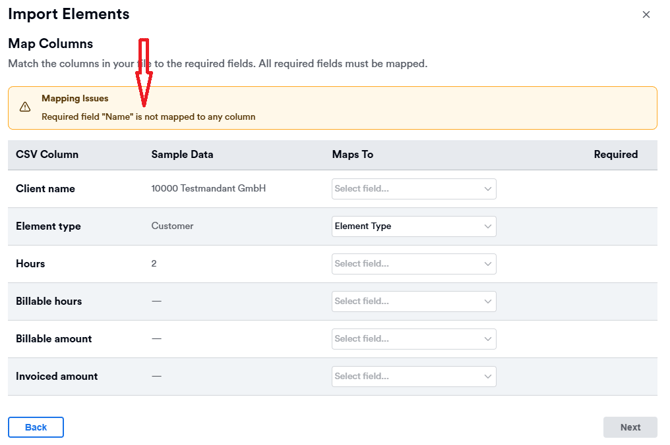
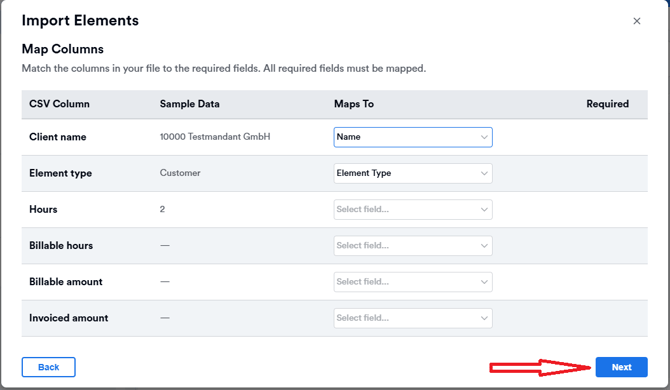
6. Map or adjust the fields as needed to resolve any errors before proceeding.
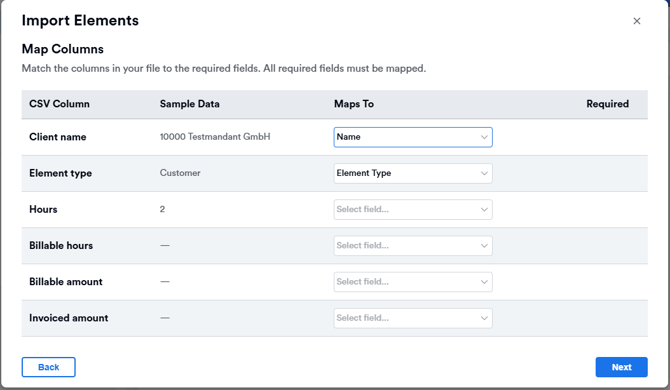
Some errors require updating the original file (e.g., adding missing columns or required fields).
7. Click Next:
8. A further preview window will appear to enable you apply the changes or add missing info:
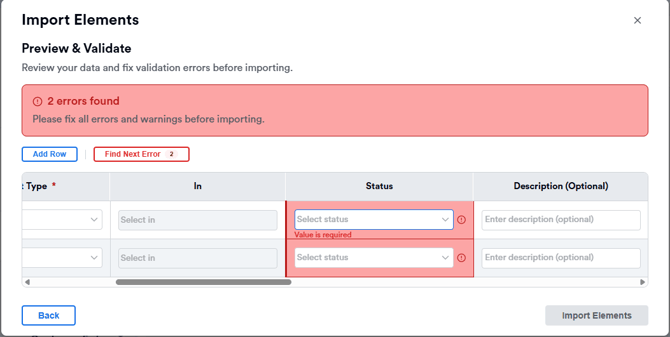
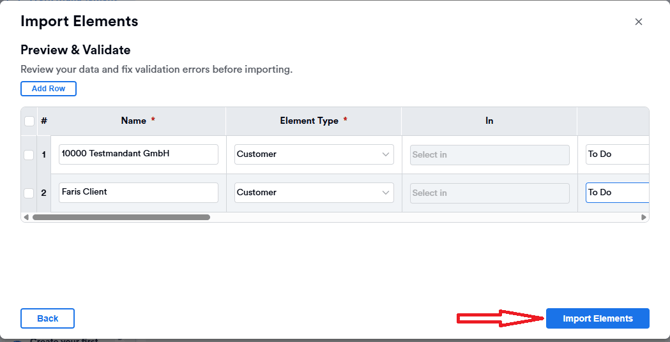
9. Make all necessary adjustments until no red errors remain, then click Import Elements.
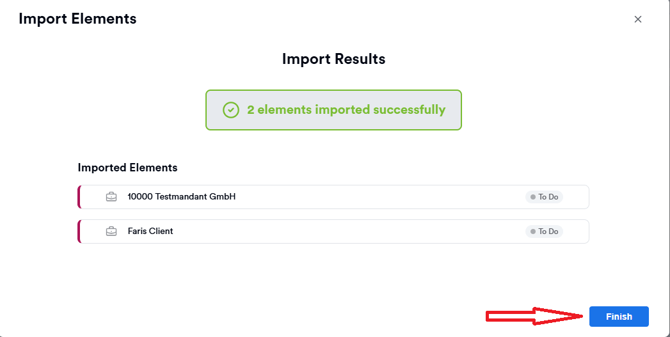
10. You will see the confirmation window, click Finish:
Support
Need help with the article or have any questions? Reach out to us anytime at: