![memtime-light-2x.png.png]](https://knowledgebase.memtime.com/hs-fs/hubfs/memtime-light-2x.png.png?height=40&name=memtime-light-2x.png.png)
1. Disable Automatic Updates:
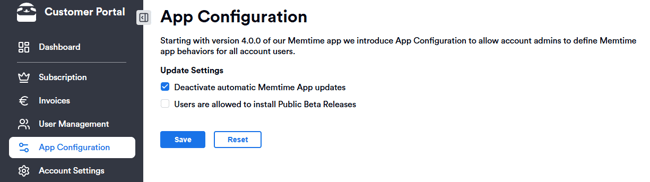
The administrator can turn off automatic updates for all users. This allows for better control over when updates are installed.
To do this, the Memtime administrator can log into the Customer Portal, and turn on this option:
2. Schedule Updates:
Once automatic updates are disabled, the Memtime admin can deploy updates according to their preferred schedule. This ensures that all devices are updated at a convenient time for the team.
Best Practices: Disabling automatic updates is recommended for users who do not have permission to install updates themselves. This approach helps maintain consistency and stability across the team’s devices.
3. Inviting your system admin to your Memtime account
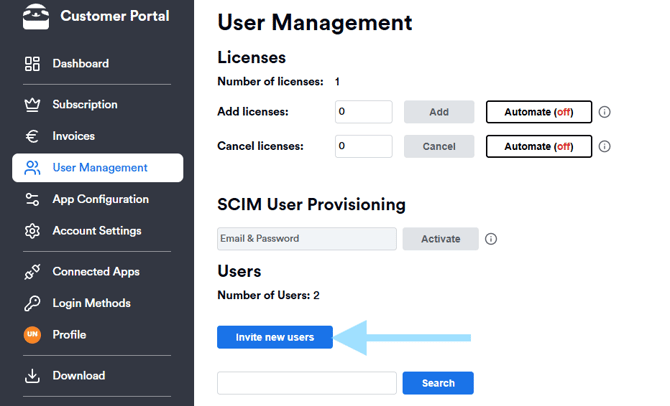
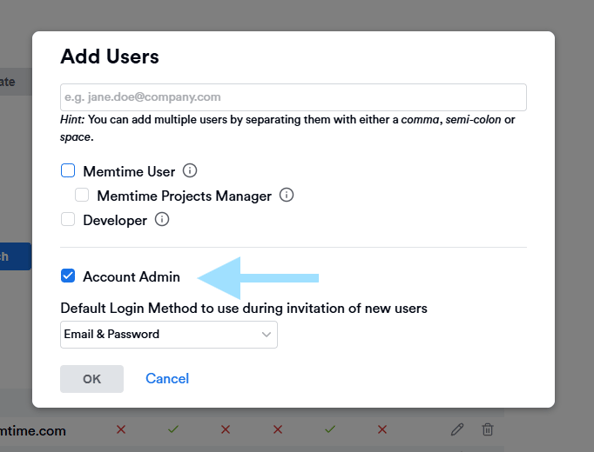
In case you have a system administrator, you can invite them to your Memtime account as an admin Memtime user.
This invitation doesn't require a license, and the system admin can manage your update installations this way.
To allow them to do so, you can follow these steps:
4. Download the Latest Memtime Version Using Curl (Optional for System Admins)
The following article explains how your IT team can automatically download the latest Memtime version using the command-line tool curl:
🔗 How to Download the Latest Memtime Version Using Curl
This article can be useful to your IT team if they're managing installations via MDM systems or automation scripts.