![memtime-light-2x.png.png]](https://knowledgebase.memtime.com/hs-fs/hubfs/memtime-light-2x.png.png?height=40&name=memtime-light-2x.png.png)
What is Memtime and why use it with DATEV?
Memtime is an automatic time tracking app that runs in the background and records your work without timers.
This is because Memtime tracks activities through your mouse and keyboard activity in the current window. Even when you switch between different tasks and tabs, everything is captured for you.
Automatic tracking
Memtime automatically tracks your work in the background while you focus on your tasks.
All activities appear in a clear, chronological timeline that helps you see exactly what you worked on when creating your time entries:
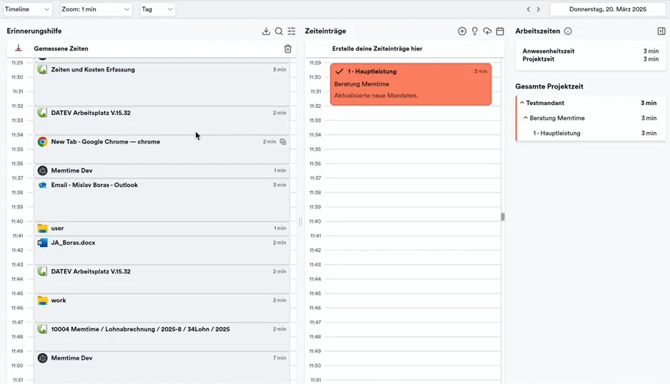
For example, Memtime automatically detects what you are working on:
- Activities in DATEV Workspace
- Documents and files
- Outlook emails
- Excel spreadsheets
- Websites and browser tabs
All data is stored locally in your environment:
- If Memtime is installed on your device, the data stays on your device
- If Memtime is installed on a terminal server, the data is stored in a folder that only your Windows user can access
There is no cloud storage. Neither bosses nor colleagues can view your data.
Memtime can also connect to your calendar or Microsoft Teams, so that you can track time on your clients and orders, directly from your calls as well.
Create time entries with Memtime for DATEV EO Comfort
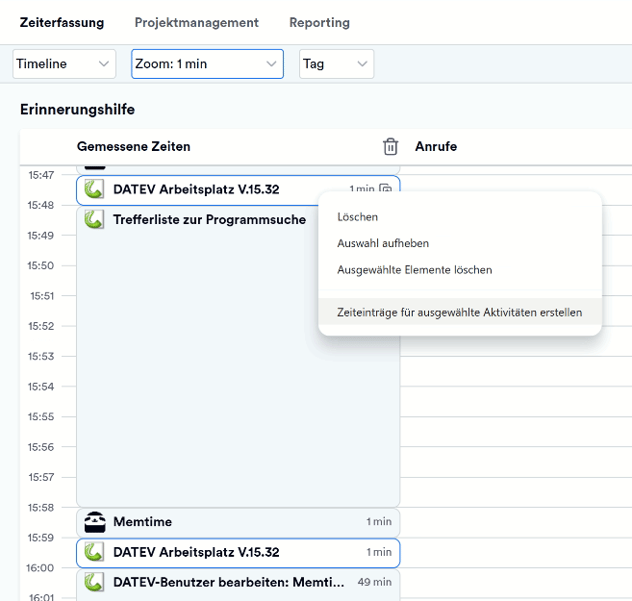
You can create time entries directly from your automatically tracked activities:
- Select one or more tracked activities from the activity column on the right
- Choose the client, order, service, and write a comment if needed
- Save the time entry
You can also select multiple activities at once by holding CTRL while clicking.
Clients and orders
If you use DATEV EO Comfort, Memtime automatically imports your clients and orders from DATEV. When creating time entries, you only need to select what you worked on.
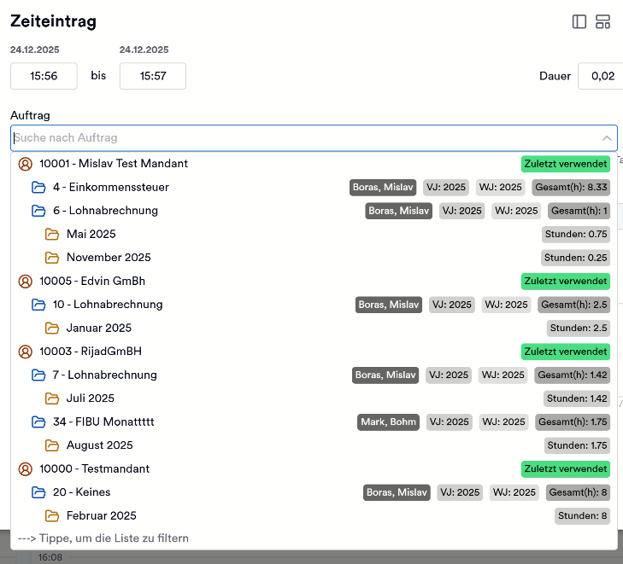
Note: Orders and sub-orders without names are automatically filtered out by Memtime and are not displayed. Please ensure that all DATEV orders and sub-orders have a name so that they can be displayed and used in Memtime.
Recently used clients and orders
After you create your first time entry, Memtime remembers the last entity you used. Recently used entities will appear automatically when creating new entries.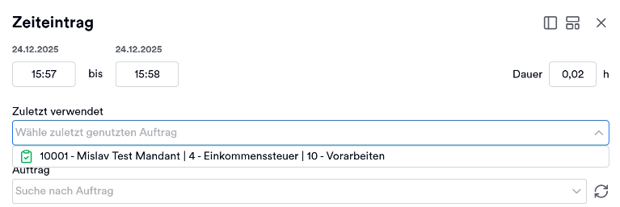
Search with multiple keywords
Searching for clients and orders works best when you use multiple search terms.
For example, entering an order name, number, and a year, filters the list more precisely and speeds up your workflow when creating new entries.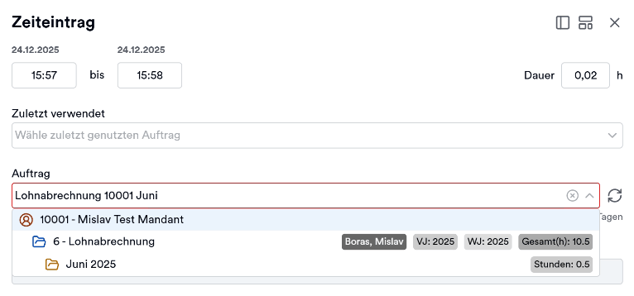
Export time entries directly to DATEV EO Comfort
After saving, your time entries are stored in Memtime. To export them to DATEV EO Comfort, click the export option in Memtime: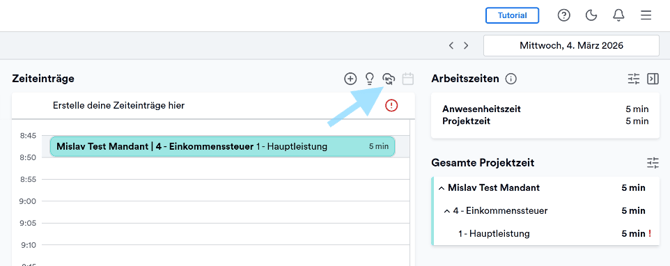
All time entries on this date will synchronize with DATEV EO Comfort.
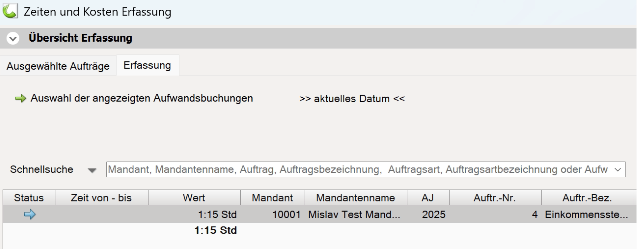
In DATEV EO Comfort, the entry appears directly in the project overview with service assignment, duration, employee, and description.
Grouping time entries in DATEV
By default, Memtime exports time entries with from and to times, because activities are tracked with exact timestamps.
If you prefer grouped entries in DATEV, you can enable a grouping option in Memtime:
Memtime App → Project Management → DATEV EO Comfort → Settings
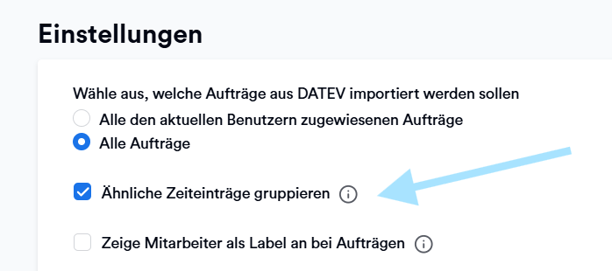
When this option is active, all time entries booked on the same client and order on the same day are exported as one combined entry, without from and to times.
Clients and orders with DATEV EO Classic
If you use DATEV EO Classic, there is no direct connection for importing clients and orders.
In this case, you can manage your clients and orders directly in Memtime using a feature called Memtime Projects:
🔗 How to connect to Memtime Projects
Important is to know that whether you use DATEV EO Comfort, or EO Classic, Memtime helps you see and capture billable work time that would otherwise be lost.
A detailed guide with more options to create time entries can be found here: 🔗 How to quickly turn tracked activities into time entries.
Automating time tracking for repetitive tasks or calendar events
Memtime can also automate the creation of time entries.
You can define rules such as:
- Automatically create a time entry when working on a specific client or order that repeats
- Automatically export time entries for daily or weekly calendar meetings
This feature is especially useful for repetitive work and recurring processes.
Learn more here: 🔗 How to Create Rules for Automation
See Memtime and DATEV in action
To better understand the workflow, you can:
-
Watch our step-by-step video: Memtime × DATEV (Vimeo)
-
Try our interactive DATEV demo, which is fully clickable
Next steps for DATEV EO Comfort
If you want to connect Memtime with DATEV EO Comfort, follow this guide:
🔗 How to Connect Memtime with DATEV EO Comfort
In case you have any questions, we are happy to assist you further with the setup.
- Support Call: Book a call with us
- Or per E-Mail: support@memtime.com